
To edit a caption on TikTok, tap on your video, choose “Edit,” then update your text before posting. Most users edit captions to correct typos or add additional context prior to a video publishing.
TikTok’s edit tool makes quick edits simple, so you can keep your posts clear and crisp. For small business owners or agencies, keeping captions crisp translates to greater reach and engagement.
Here’s how to do this easily.
The Truth About Editing TikTok Captions
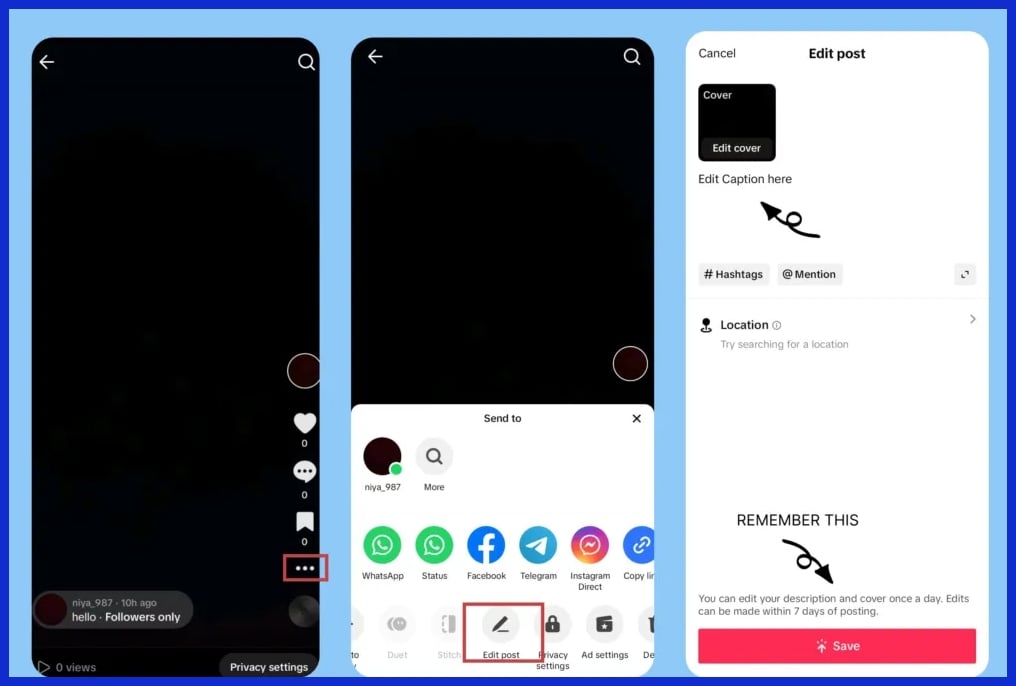
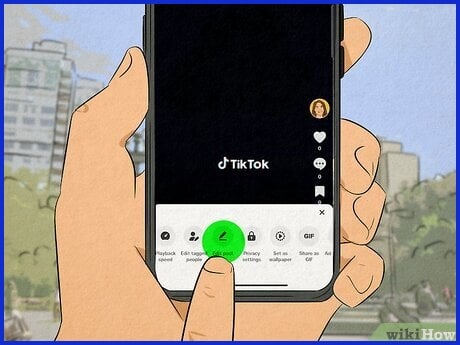
It may be a minor point, but editing captions on TikTok is crucial to how your video gets viewed and interpreted. A lot of users, particularly small biz owners and agency folks, encounter the same stumbling block — editing a TikTok caption post-publication isn’t as seamless as you’d imagine. TikTok allows you to click the three dots on the right side of your video and check for the ‘Edit Captions’ or ‘Edit post’ button.
Occasionally, this option simply doesn’t appear. If that occurs, you need to save the video and then repost it with a fresh caption. This feels clunky and can even damage your video’s reach if you’re not careful. Understanding how far TikTok’s editing goes is crucial. It’s true, you can edit the caption text, but you cannot adjust its appearance.
No bold, no italics, no font change. For all of us aspiring to be noticed, this is a disappointment. There’s no grammar or spell check integrated. Each word you write is on you—there’s no parachute. Editing the TikTok captions is important. If you’re running business posts, a typo might damage your brand.
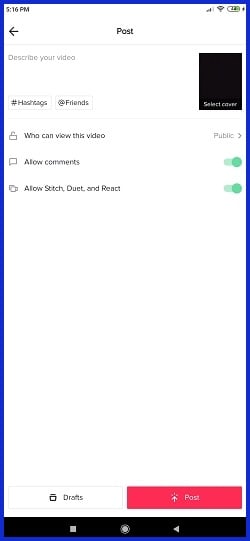
Others get tripped up editing captions because they’re not familiar with TikTok’s layout. If you’re ever at a loss, find some tutorial or even contact Graphically.io, where you can receive assistance for design and clean error-free copy as well. Captions do more than share a message; they expose your video to more people.
Straightforward captions also make your video more accessible to viewers who watch on mute or are hard of hearing. A solid caption can increase your video’s search frequency. Editing a caption won’t ping your followers who saw the original. This implies edits could be invisible to early viewers.
How to “Edit” Your Caption After Posting
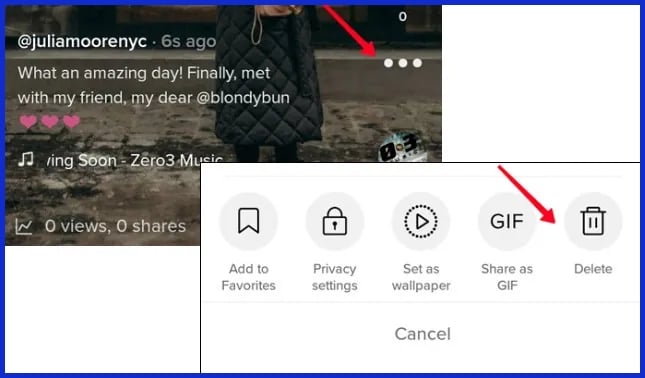
TikTok doesn’t allow you to edit a caption after a video is posted, which can be frustrating for creators. However, you can re-edit your video by deleting it. Here’s how it goes.
1. Go to “Delete.”
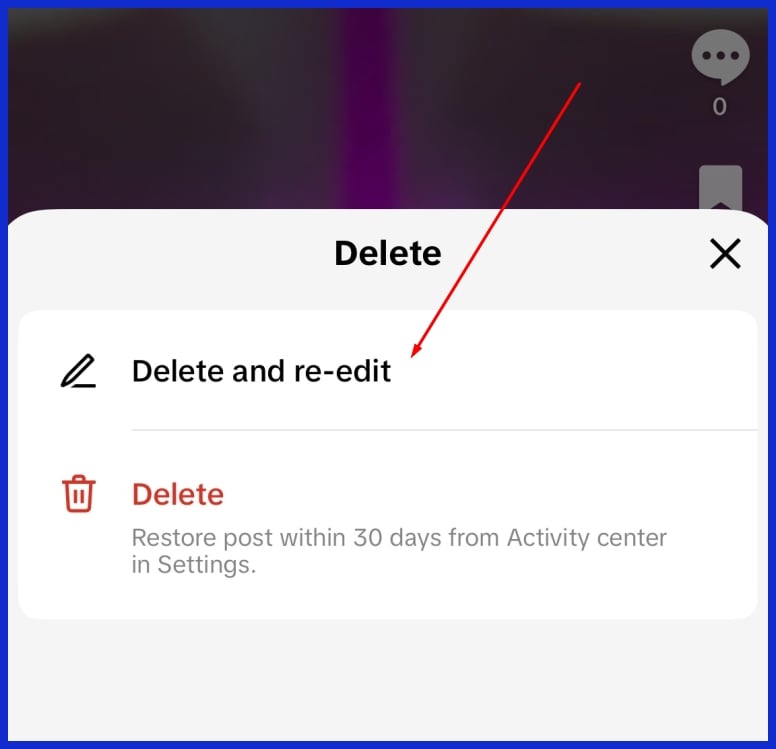
After posting, and you decide to change your caption, go to the delete button, and click “Delete and re-edit.”
2. Make a few tweaks to your video if you like
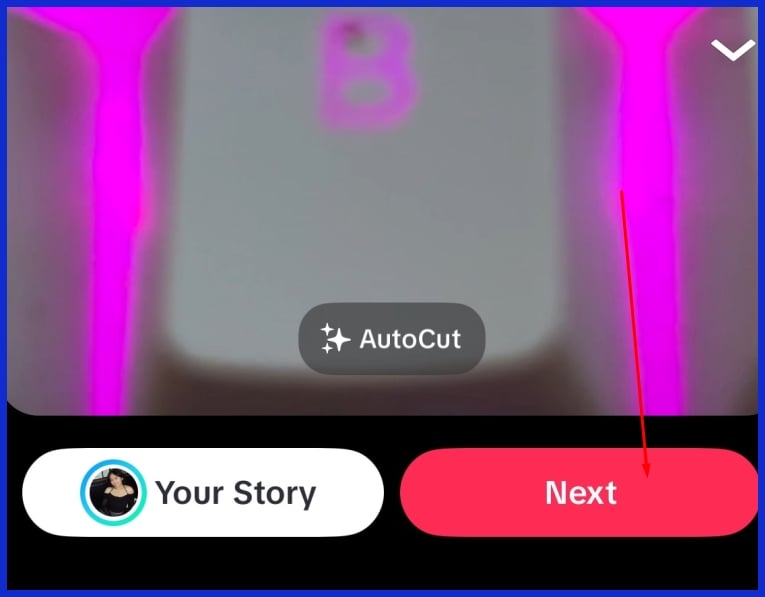
You will be redirected back to where you can edit your video as a whole. If you are satisfied with your video, just click “Next.”
3. Edit your caption
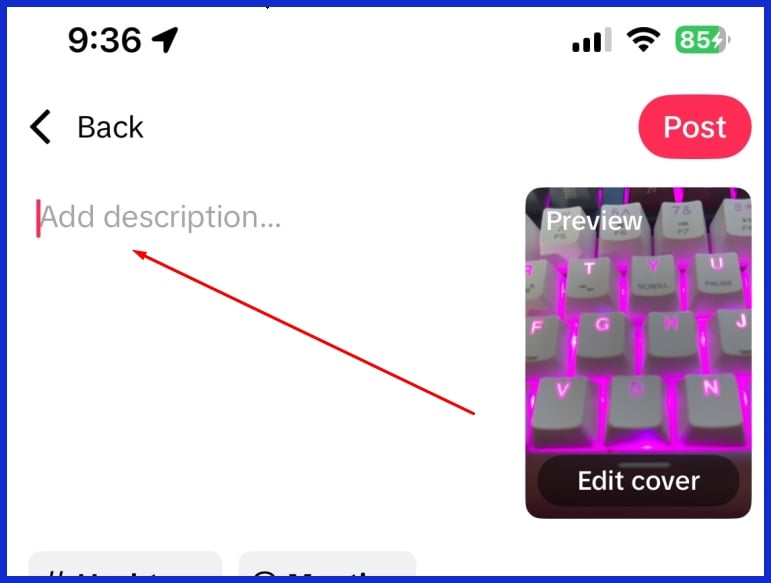
Now, you can craft your new caption, add hashtags, or make witty remarks. Experiment with different tones, such as serious, humorous, or even a query, to determine what your audience prefers. Make it short but obvious. Long captions will be skipped. A good caption can translate to more comments, shares, and followers, especially if you’re a small business or agency.
4. Repost your video
Just make sure everything looks right, then hit “Post.” Observe your video’s performance over the subsequent hours and days. Respond to comments and thank fans. This creates loyalty and demonstrates you care.
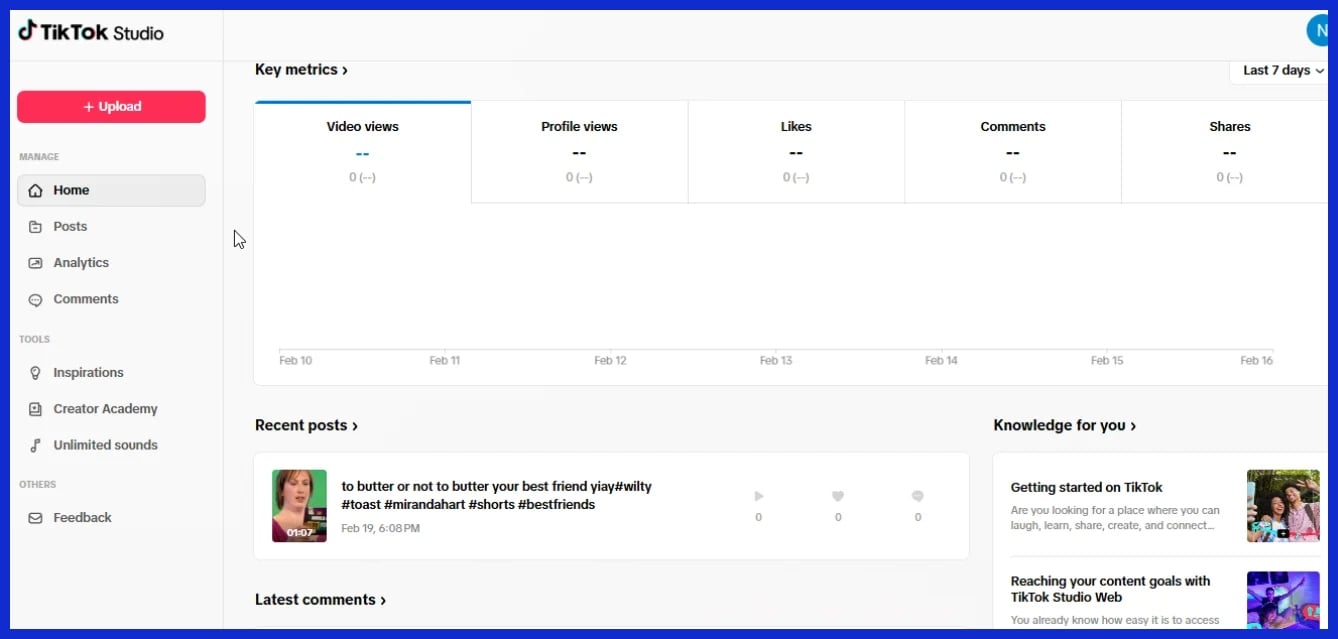
Read your analytics to confirm your edits made a difference. If your new caption results in greater engagement, leverage those insights to optimize your content approach.
For brands and agencies, they can rely on tools like Graphically.io’s quality checks to make sure every post meets client goals.
Master In-Video Captions Before You Post
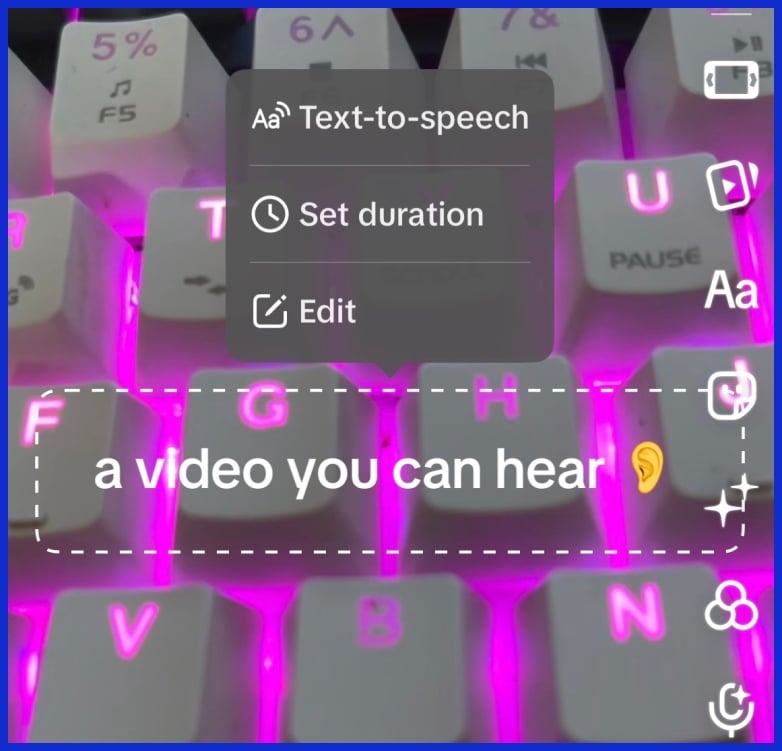
TikTok’s in-video captions aren’t just a trend; they’re a necessity for expanding your reach and increasing the accessibility of your content. Since roughly 69% of viewers watch videos on mute, captioning helps you capture attention and retain your audience. Captions can increase your engagement rate and increase your watch time, both key for any SMB or agency looking to scale on TikTok.
Master in-video captions before you post. Before you post, knowing how to use the platform’s caption tools and when to step in for manual edits makes all the difference.
Automatic Generation
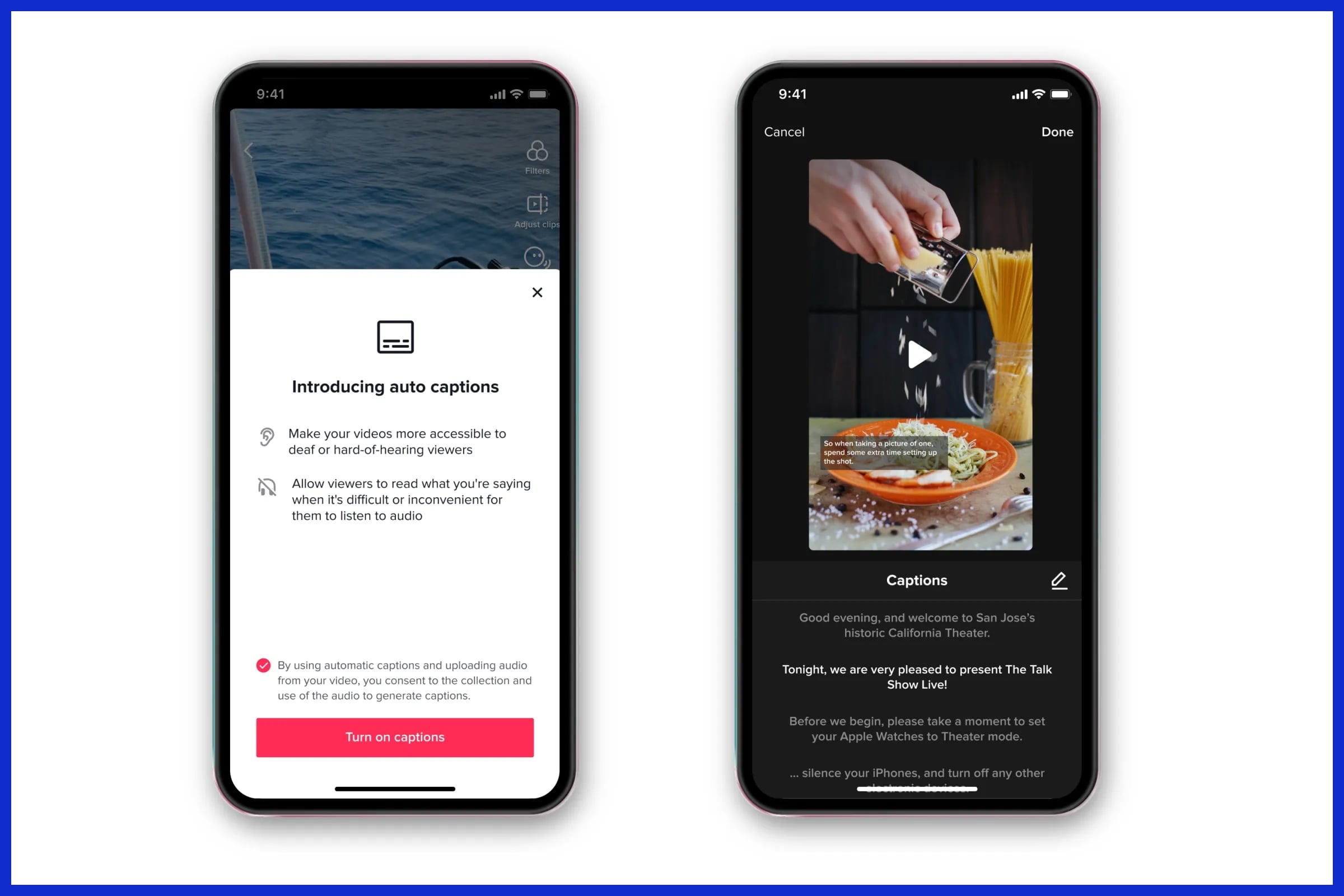
TikTok’s auto-caption tool is the simplest way to add text. Toggle on auto captions immediately after you record or upload a video and TikTok converts speech to text in moments. This feature is a massive time-saver for agencies and creators who batch or run multiple accounts.
It makes your videos accessible for the 466 million people globally with disabling hearing loss. Captioned videos can experience as much as 12% additional engagement, which is an easy win for your numbers.
Manual Text
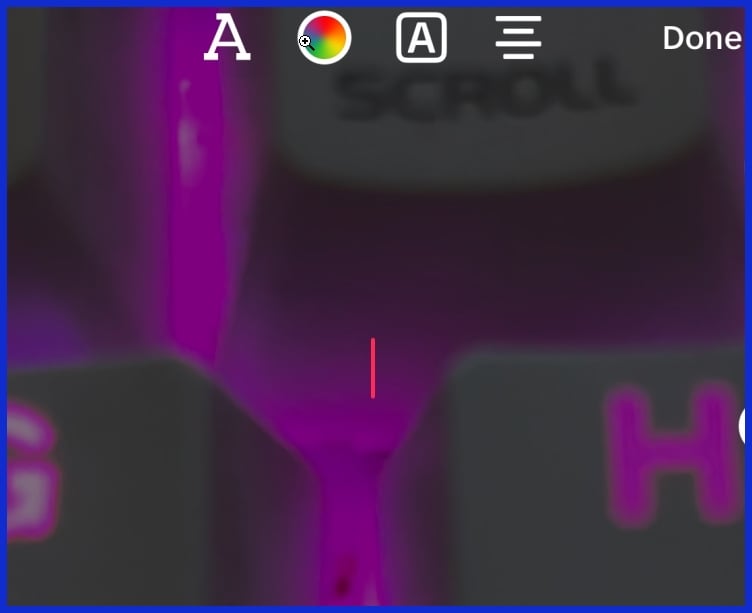
Manual captioning offers you greater control, allowing you to inject your own flair and emphasis into your TikTok videos. Here is a quick comparison: Hack #1: Type your captions directly into TikTok’s text tool. You can select where your text appears – top, bottom, or even alongside your face. Smart positioning keeps your audience engaged with your video content and not distracted by clutter.
|
Method |
Control |
Impact |
Strategies |
|---|---|---|---|
|
Auto Captions |
Low |
Fast, broad accessibility |
Review, quick fix |
|
Manual Typing |
High |
Precise, on-brand |
Highlight keywords, add humor, clarify |
|
Hybrid Approach |
Medium |
Balanced |
Start with auto, edit for accuracy/style |
It’s essential to select a font size that is comfortable to read on any screen. Use bold color contrasts so your words do not get lost against busy backgrounds. This is crucial for videos with a ton of action or vivid imagery, especially when using TikTok effects.
Select a font size that is comfortable to read on any screen. Use bold color contrasts so your words do not get lost against busy backgrounds. This is crucial for videos with a ton of action or vivid imagery.
Style and Edit
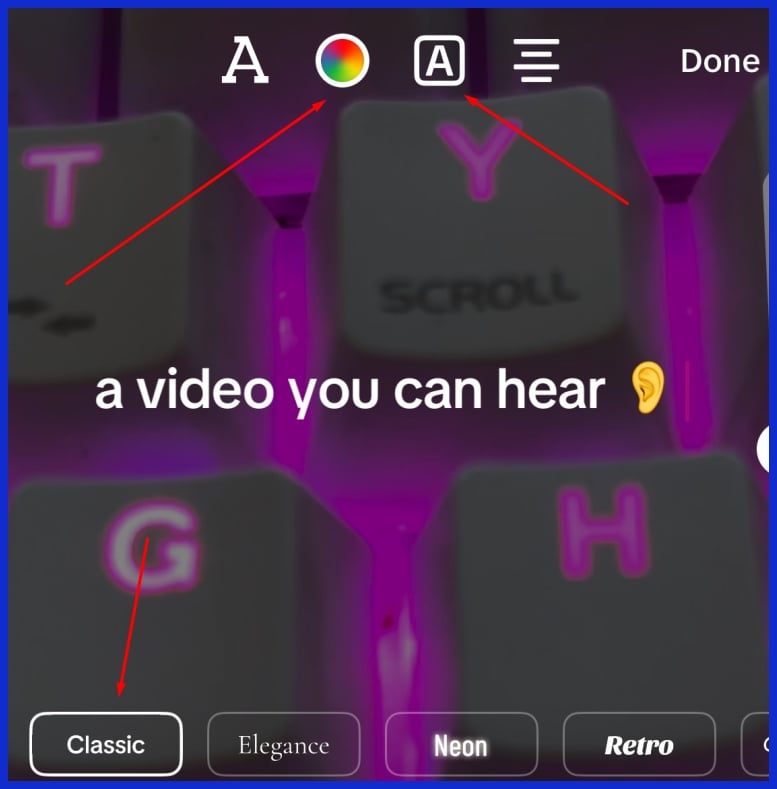
Captions don’t need to be boring. Experiment with different text styles and effects to complement your video’s vibe. Try bold lettering for urgency, soft tones for calm content, or playful fonts for lighter moments.
Match colors and fonts to your branding for a seamless look. Learn to time your in-video captions before you publish. Make text appear perfectly timed with your images or speech. Well-timed captions guide viewers through the video without cluttering the screen.
Too much styling can distract, so keep it balanced. Be sure your captions contribute, not clog. Master in-video captions before you post.
The Unseen Impact of Caption Edits
Caption edits don’t just make the words shine; they influence a TikTok video’s performance and audience engagement. A small edit in wording, clarity, or even translation can alter the story, sway perception, and sometimes even increase engagement.
Here’s how caption edits can affect a video’s reach and resonance:
-
Simplify watching, particularly for non-native speakers.
-
Provide context or wit, altering the video’s message or mood.
-
Increase accessibility for viewers with hearing impairments.
-
Improve clarity, helping viewers grasp your main message.
-
Help videos rank better in search with more relevant keywords.
-
Generate more engagement (likes, shares, comments) as captioned videos have been shown to receive a 12% lift in engagement.
The Algorithm
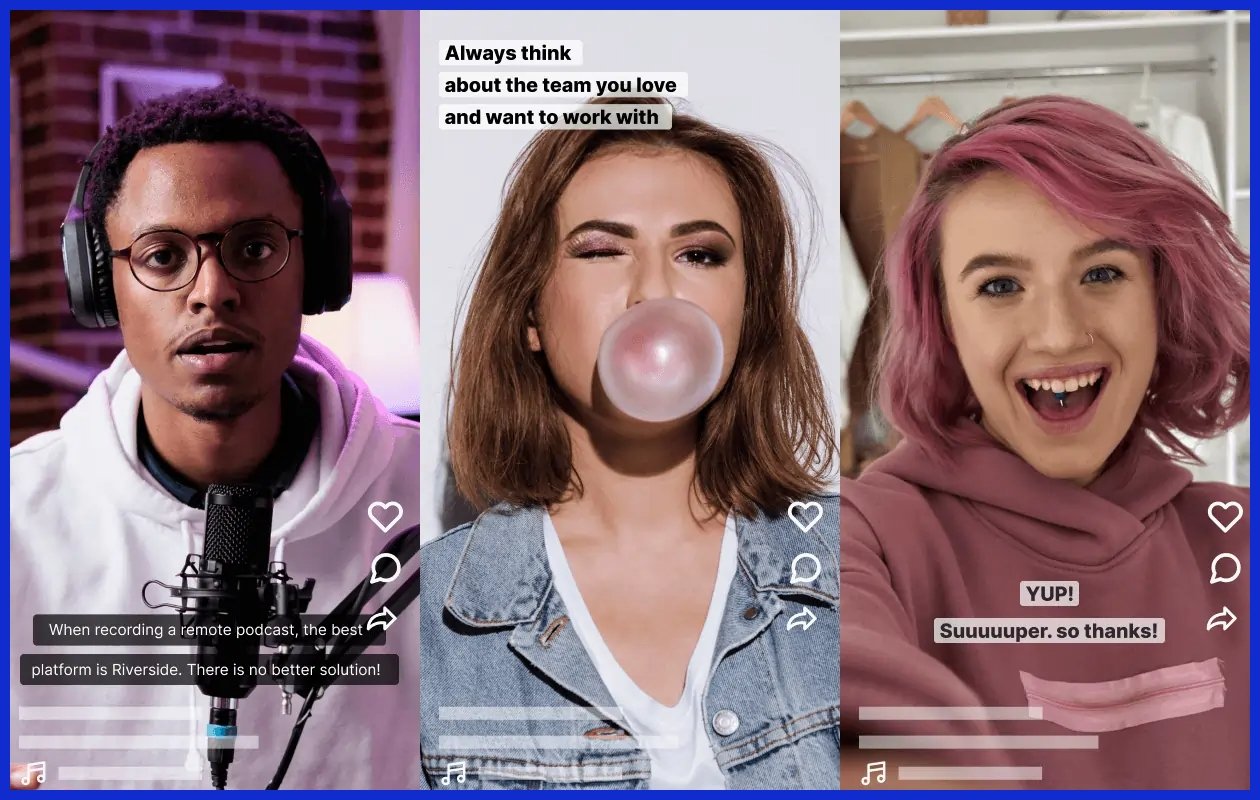
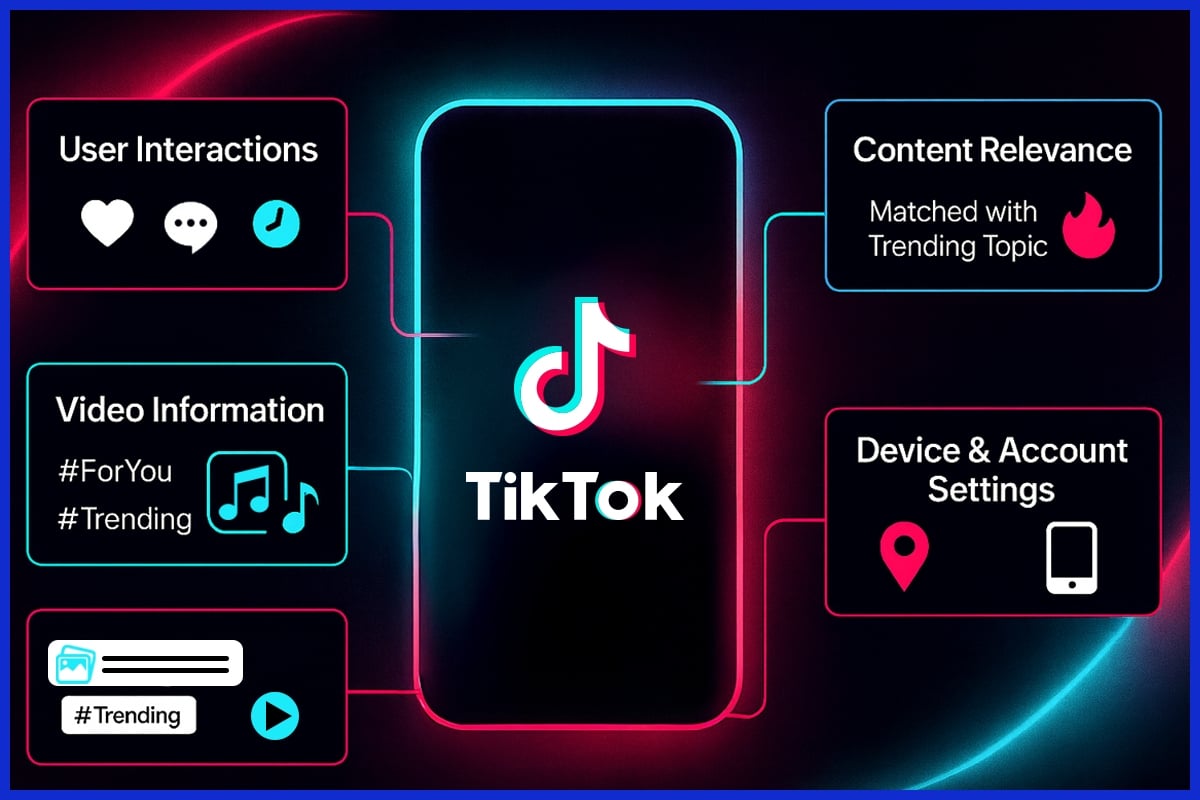
TikTok’s algorithm takes note of captions. Compelling captions can keep people watching, which alerts the algorithm that a video is boost-worthy. When captions are intriguing or generate curiosity, readers linger.
A clever caption game influenced by these trends can make the difference between a score and a whiff.
Viewer Perception
Your audience views captions through the filter of their own perspective. As we discussed in the video, a well-written caption not only makes a video feel relatable but can even prompt viewers to engage or comment.
Think about who you want your message to reach and write captions that embrace everyone. Other times, just requesting feedback in the comments assists you discover what watchers desire. Eventually, this feedback loop makes your captions crisper and more compelling.
Engagement Metrics
|
Metric |
Before Edit |
After Edit |
|---|---|---|
|
Retention Rate |
48% |
57% |
|
Likes |
200 |
245 |
|
Shares |
35 |
50 |
|
Comments |
18 |
28 |
Analytics show what’s working. Tracking engagement changes pre and post caption edits allows you to identify patterns. A how-to video tends to generate additional comments when the caption requests questions.
Use this information to modify your strategy on future posts. This marginal optimization is what will differentiate your clips if you’re handling dozens of videos for clients or brands.
Writing Captions That Connect
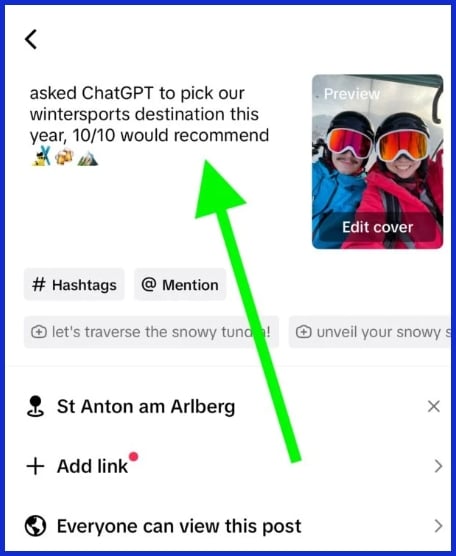
A great caption can ignite a smile, a thought, or a chat so that people want to interact or pass it on. This is exactly where a powerful caption shines — it doesn’t just tell, it draws in and resonates, much like compelling tiktok videos that capture attention.
-
Keep captions brief and direct. There is no need to stuff them with fluff.
-
Be sure to use powerful action words that prompt people to take action, such as “share your thoughts” or “tag a friend.”
-
Pose questions that people want to answer, even simple ones like “Which one would you choose?”
-
Paint a piece of life or a mini-tale. Folks enjoy seeing their own selves in your words.
-
Be funny when it is appropriate. A light touch or a clever joke can really make your post pop.
-
Include a CTA, like “See link in bio for more.”
-
List things or use quotes to change things up.
-
Throw in some related hashtags to get discovered by more people.
Variety in format lends freshness to your captions. Experiment with a mini tip list, a pithy quote, or just toss out a cheeky question. This prevents staleness and provides your audience with a fresh experience every visit.
Humor is a bonus. Even a small joke or funny twist makes your content more shareable. People like to share things that make them laugh or feel good.
A story, even just a little one, makes a plain caption something that people remember. For example, sharing a quick win or lesson learned makes you real to your viewers. This establishes confidence and distinguishes you in a busy feed.
If you write about something real, say a day your design didn’t work out, so you patched it up with a new concept, other people put themselves in your situation. It’s a huge coup for a little business or agency striving to cultivate a loyal following.
Conclusion
Editing a TikTok caption can be like chasing after a wild goose. Easy steps are the most effective. Save your post, adjust your video, or rewrite from scratch. Tiny tweaks to your captions attract more likes, more eyeballs, and more followers. Tools outside TikTok assist as well, providing you with additional avenues to polish your caption.
Great captions are like a magnet; they grab people, ignite shares, and create an actual audience. Even a brief sentence can distinguish your video in an endless scroll of clips. Want to make your brand sparkle some more? Tell your tale, be authentic, and don’t be afraid to innovate. Want assistance with your next TikTok? Contact the folks at Graphically.io.
Frequently Asked Questions
Can I edit a TikTok caption after posting?
No, TikTok users cannot modify captions after posting a video; instead, you must delete the video and re-upload it to change the caption functionality.
What is the best way to “edit” my TikTok caption after posting?
There’s no other way than deleting your video and re-uploading it with a new caption. Don’t forget to tap save on the editing screen to keep your video content protected.
How can I add or change in-video captions on TikTok?
You can add or edit in-video captions using TikTok’s native text tools before posting. Optimize your video content by editing the text overlays on the editing screen for better engagement.
Why are accurate captions important on TikTok?
Explicit captions assist your audience in comprehending your point and enhance video content accessibility. They open your video to a wider audience and can boost engagement, particularly for TikTok users who like or require subtitles.
Are there tools to help me perfect my TikTok captions?
Yes, you can utilize third-party apps like the CapCut desktop video editor to generate and modify captions prior to posting your TikTok videos. These tools can assist you with accuracy, timing, and style.
Do caption edits affect my TikTok video’s performance?
Deleting and re-uploading a video on the TikTok app to fix a caption can negatively affect your reach, causing the video to lose its original views, likes, and comments.
How do I write captions that connect with a global audience?
To edit a caption on the TikTok app, follow these steps.
-
Open the TikTok app and go to your profile.
-
Find the video with the caption you want to edit.
-
Tap on the three dots or the “More” option on the right side of the video.
-
Select “Edit” from the menu.
-
Change the caption as desired.
-
Tap “Save” to update your video with the new caption.