DIY graphic design tools are online or software-based platforms that empower users to create stunning graphics with minimal technical expertise. Today, countless small business owners, agencies, and consultants rely on these tools to free up their time and stretch their budgets.
By removing traditional barriers to entry, these platforms allow teams to produce their best work faster and keep their visual content fresh. However, navigating the sheer volume of available software can be overwhelming. In the following sections, we will explore the best tools on the market, the key features you need, and how to elevate your brand’s visuals without pulling your hair out.
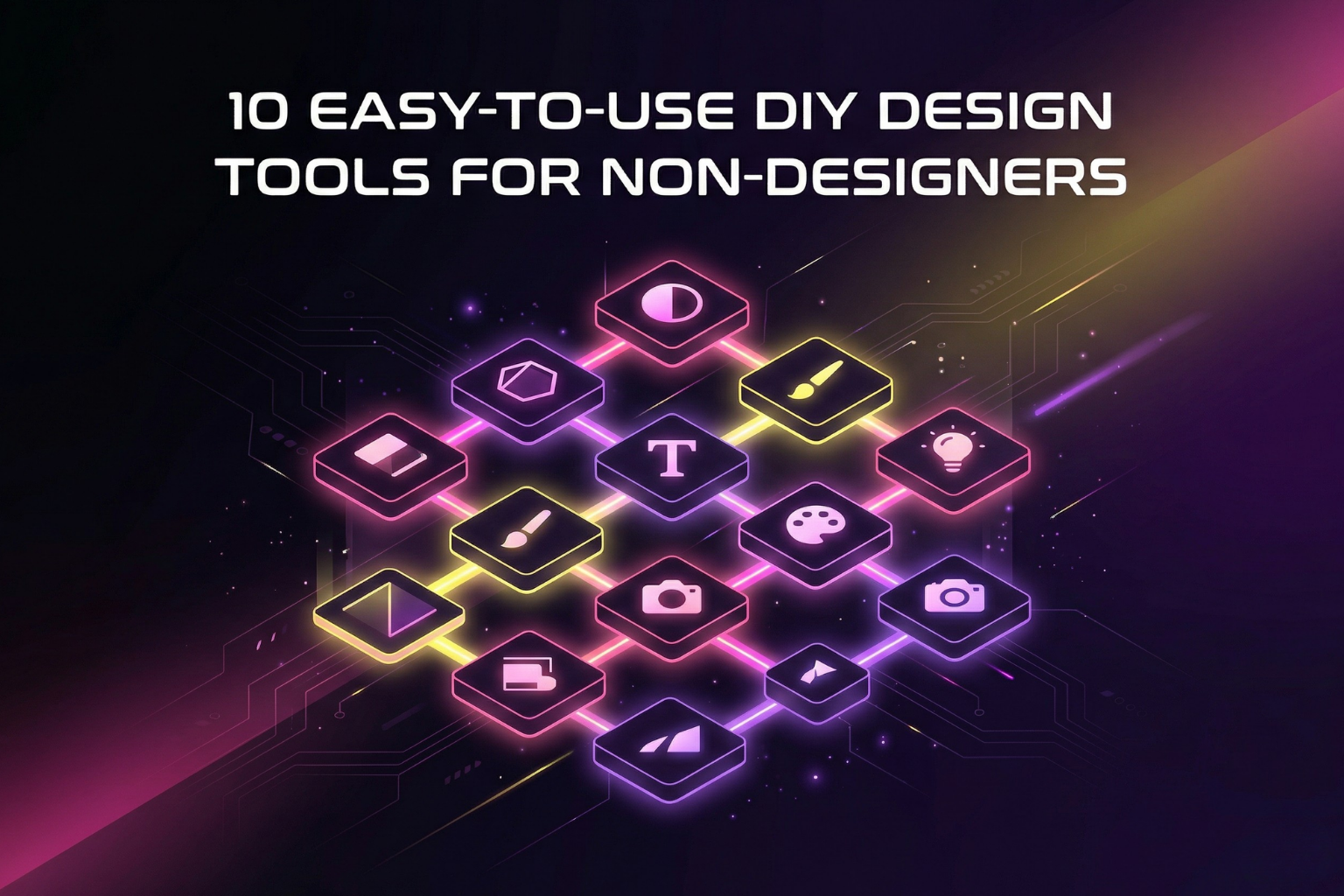
10 Easy-to-use DIY Design Tools for Non-Designers
To help you cut through the noise and find the right fit for your workflow, here is a complete look at 10 of the best tools available for non-designers seeking professional results:
Canva
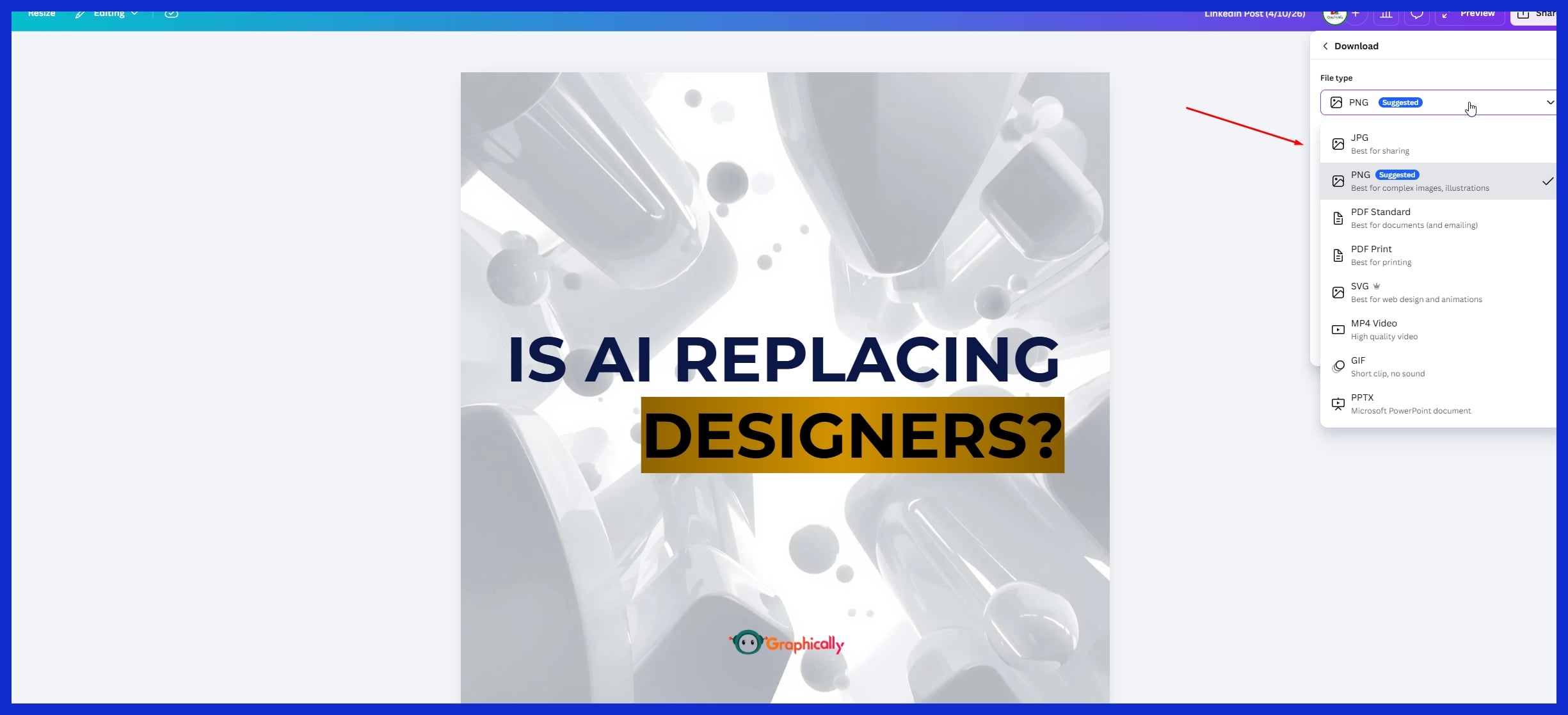
The undisputed king of DIY design, offering an incredibly intuitive drag-and-drop interface and millions of templates for everything from social posts to presentations.
Adobe Express
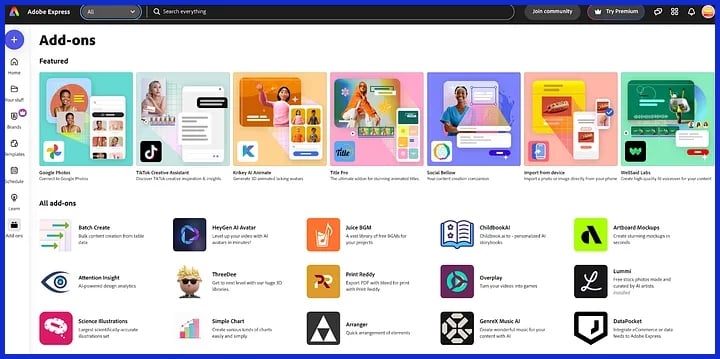
Adobe’s answer to Canva, providing access to premium Adobe stock photos, fonts, and powerful AI-driven quick actions (like background removal).
Figma
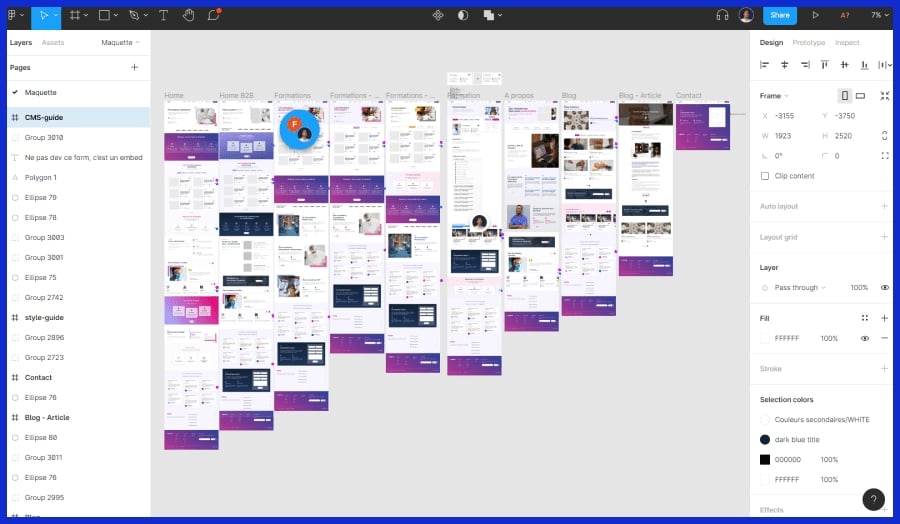
A powerful, collaborative interface design tool. While slightly more advanced, it is unparalleled for teams wanting to co-create web layouts or vector graphics in real-time.
Visme
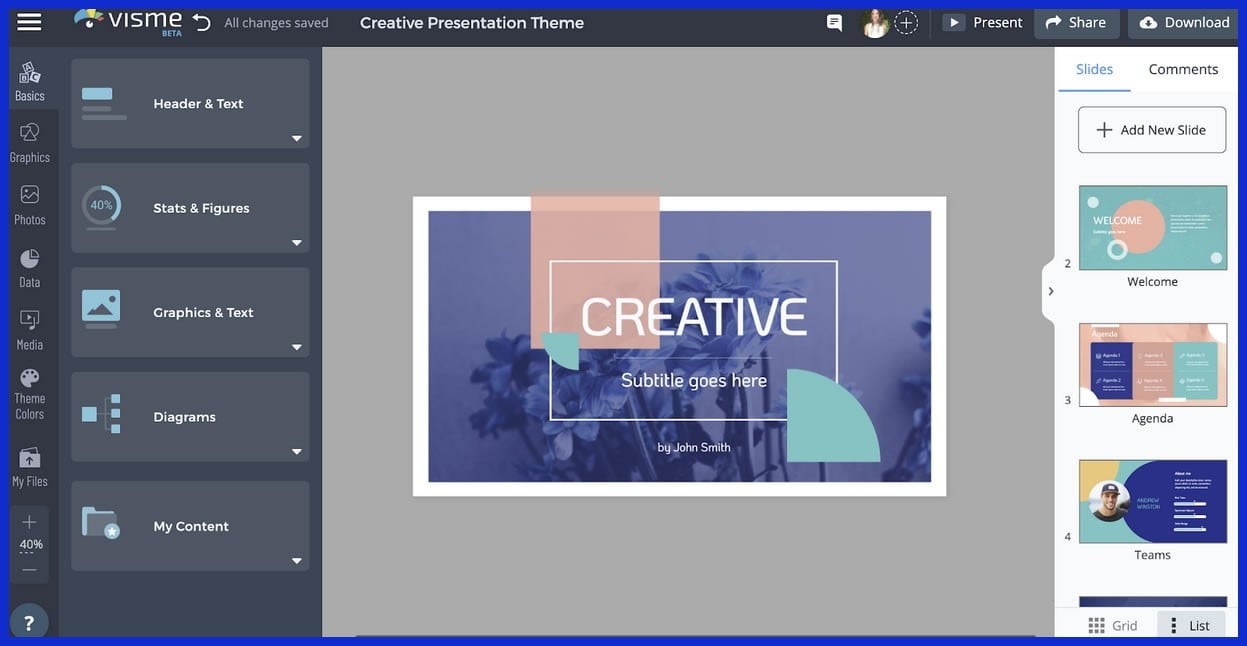
Ideal for creating data visualizations, infographics, and interactive presentations that go beyond basic social media graphics.
Snappa
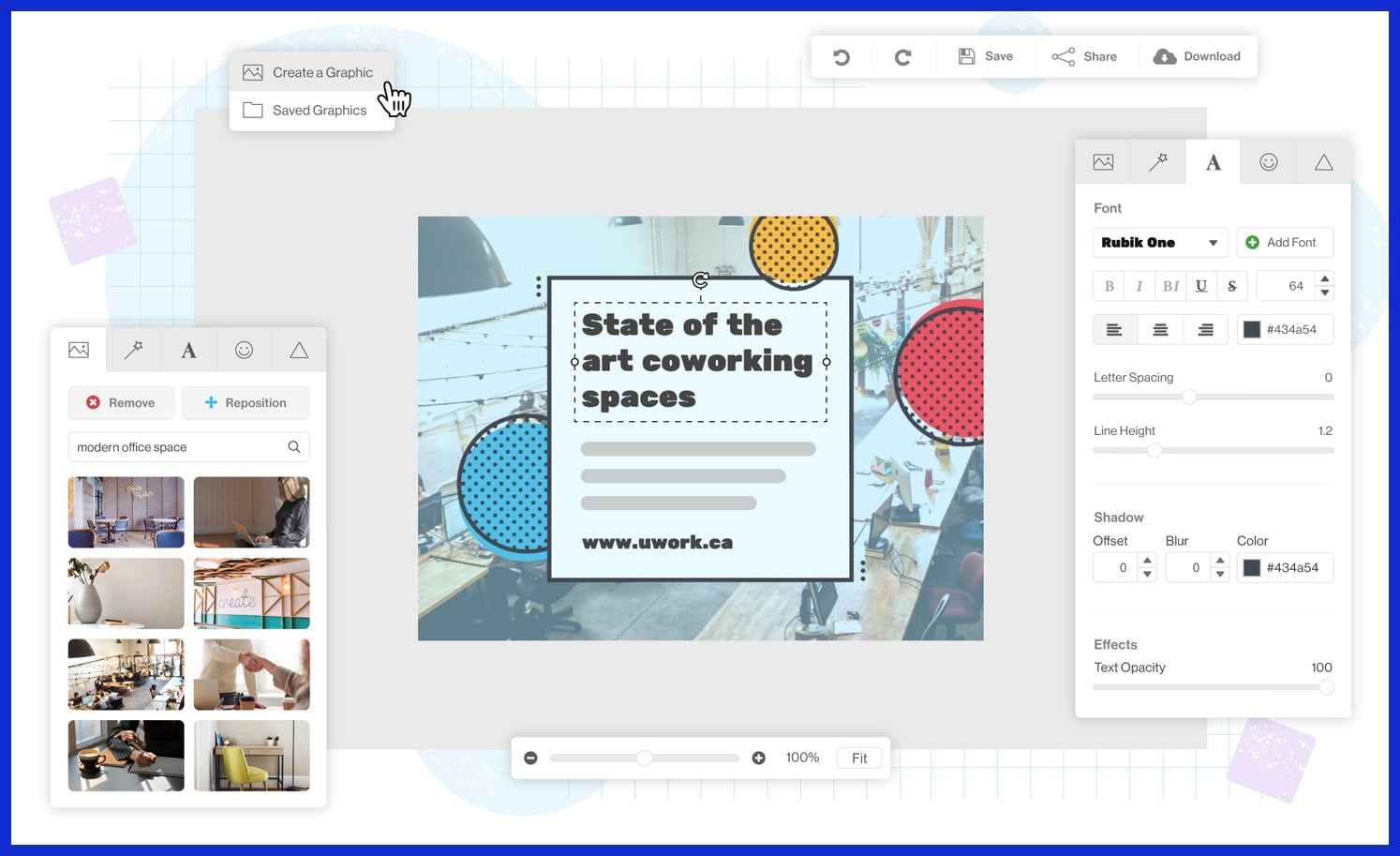
A streamlined, highly focused tool designed specifically for whipping up social media graphics and blog featured images as fast as possible.
Pixlr
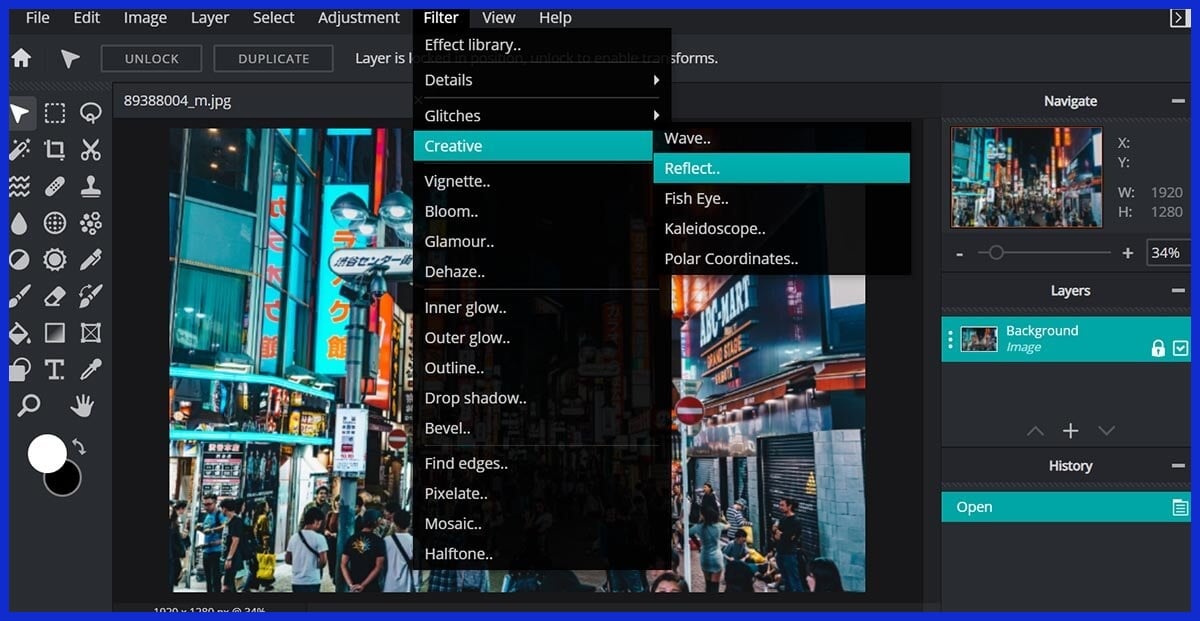
A fantastic browser-based photo editor that feels like a lightweight version of Photoshop, perfect for quick image retouching.
Inkscape
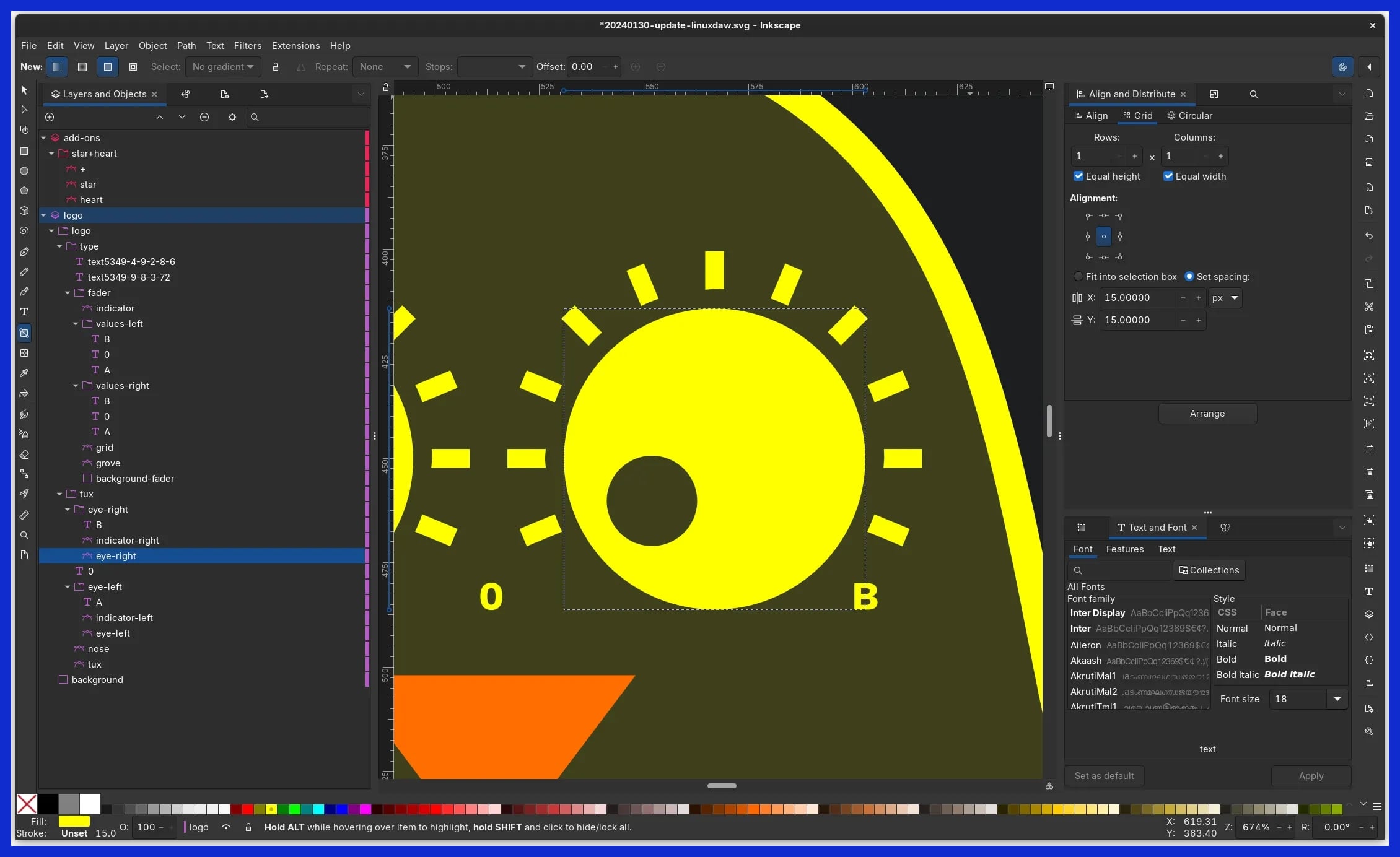
A robust, free, open-source alternative to Adobe Illustrator, excellent for users who need to create scalable vector graphics (SVGs) without a subscription.
GIMP
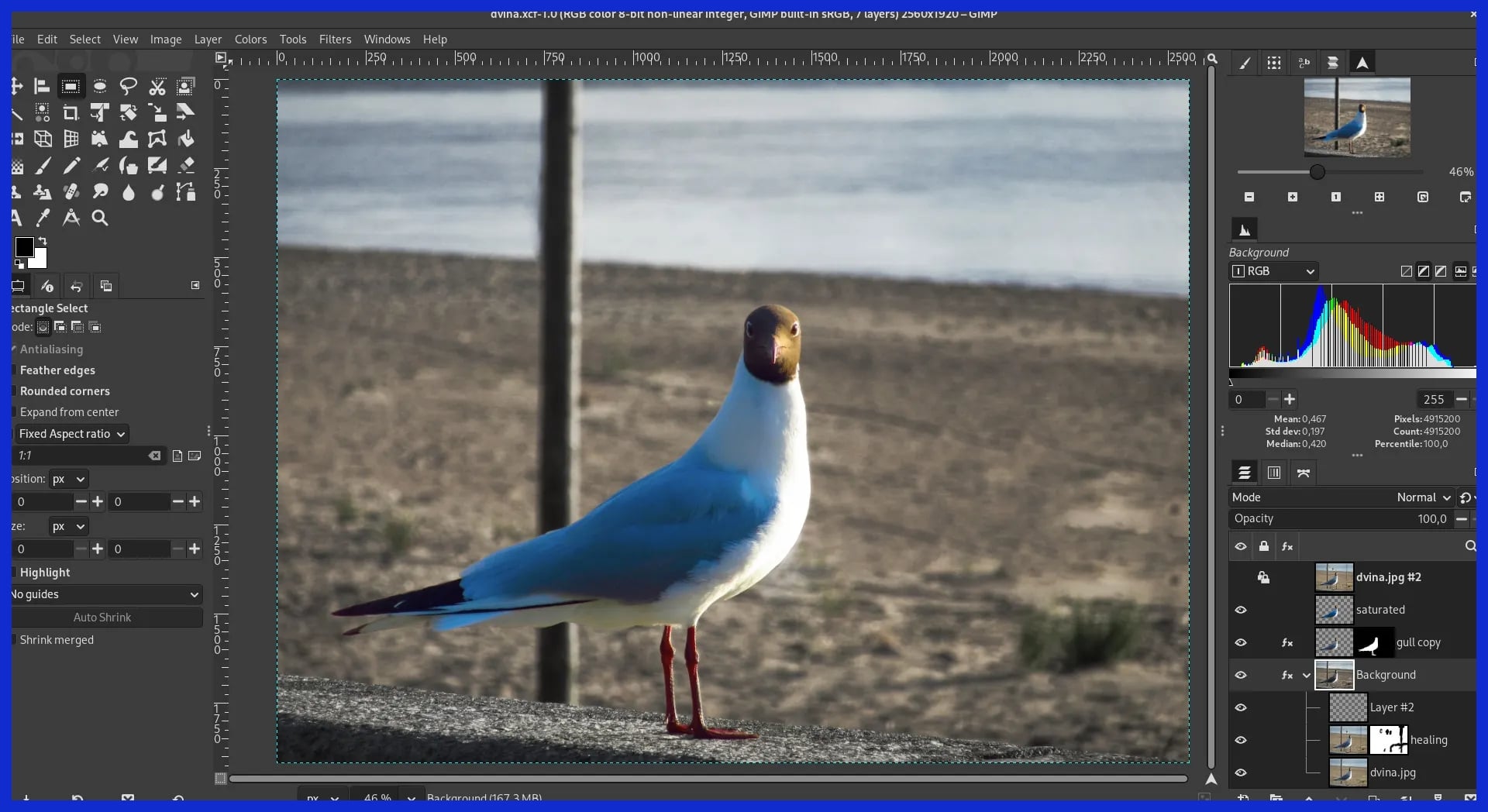
The go-to free, open-source alternative to Photoshop. It has a steeper learning curve but offers incredible photo manipulation power for zero cost.
Affinity Designer
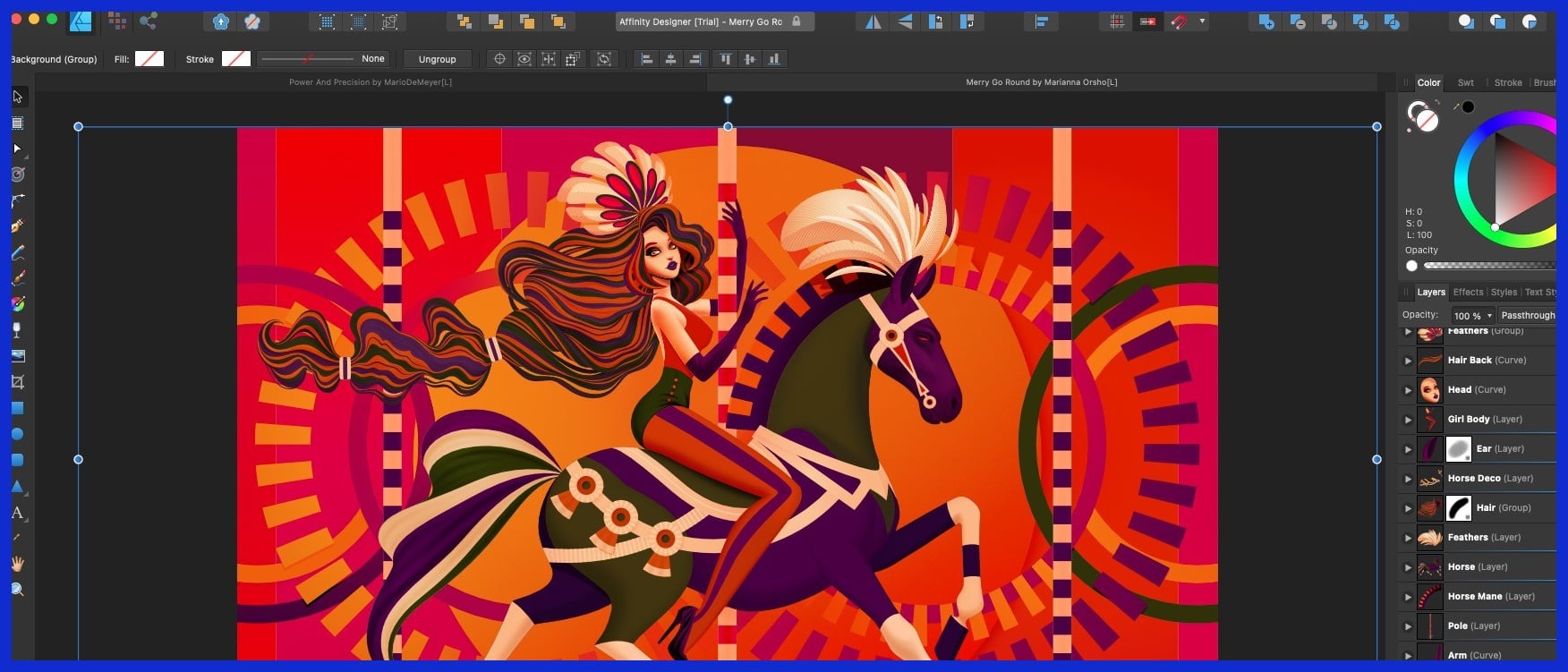
A premium but budget-friendly (one-time purchase) vector graphic design software for those who want professional-grade tools without a monthly Adobe fee.
PicMonkey
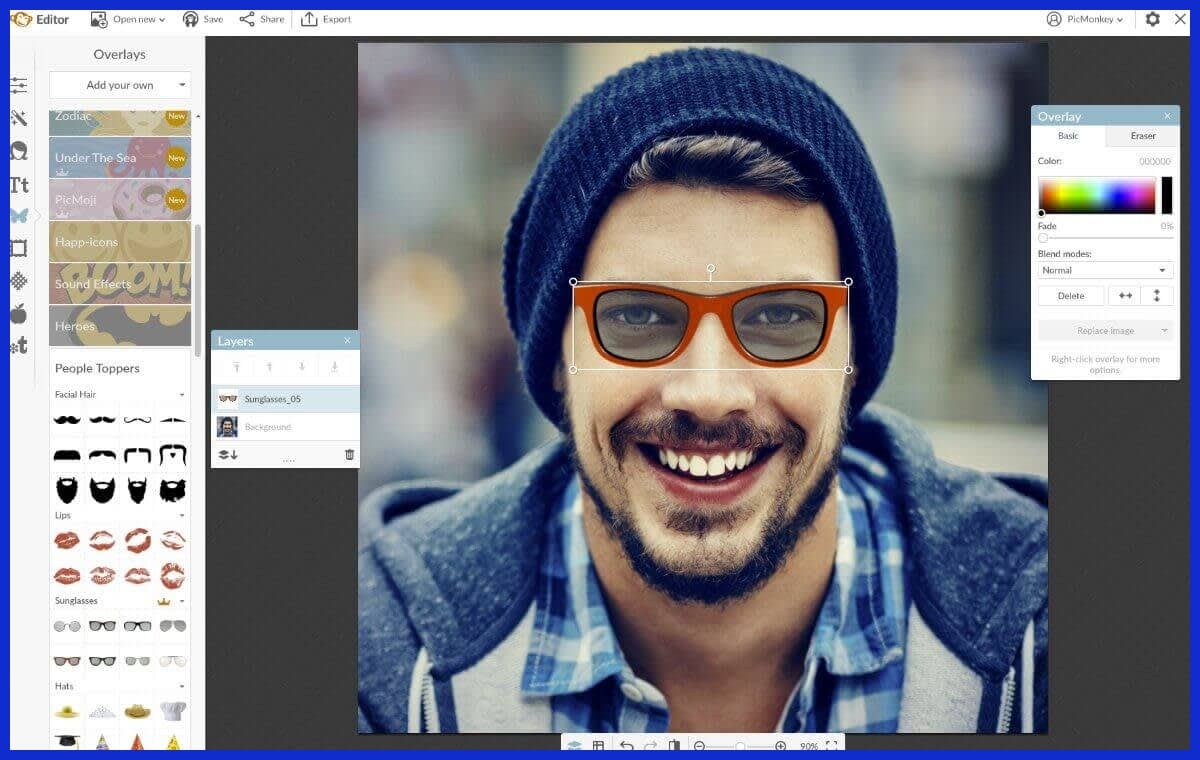
Great for photo editing and social media design, offering advanced touch-up tools and a highly intuitive interface.
Key Features to Look For
These platforms are designed to simplify your workflow. Here is a quick breakdown of how common features compare across popular DIY platforms:
|
Feature |
Drag-and-Drop |
Asset Libraries |
Customization |
Export Formats |
Template Libraries |
|---|---|---|---|---|---|
|
Ease of Use |
High |
Moderate |
High |
High |
High |
|
Asset Variety |
Low |
High |
Moderate |
Moderate |
High |
|
Branding Control |
Moderate |
Moderate |
High |
High |
Moderate |
|
Export Flexibility |
Moderate |
Moderate |
High |
High |
Low |
1. Template Libraries
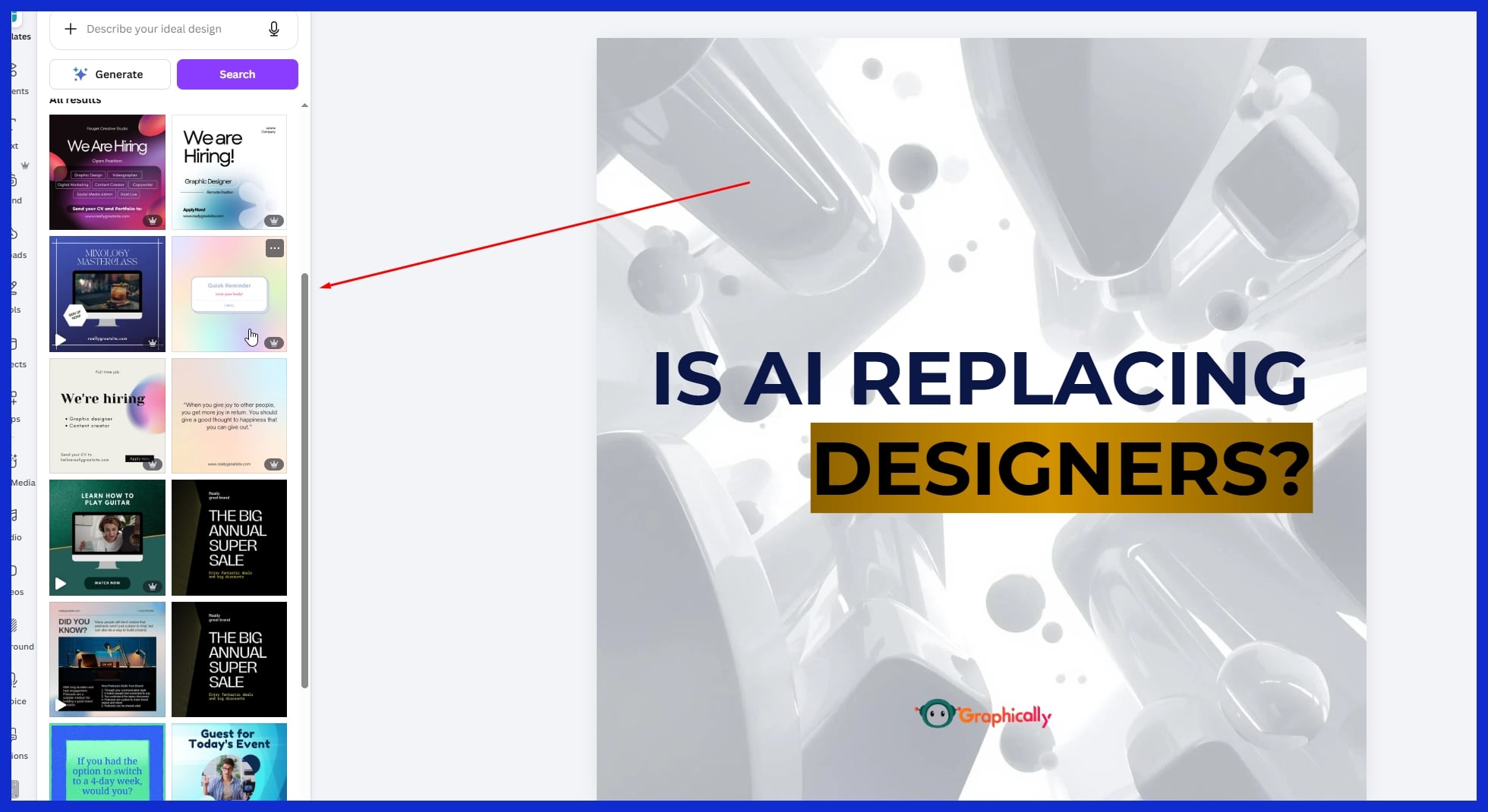
Template libraries allow you to begin with pre-designed layouts, ranging from social media posts to business presentations. You don’t have to look at the blank page.
Select a template, customize it to your brand, and save hours. Many tools provide hundreds to thousands of templates that inspire new thinking and help you keep up with rapid projects.
These templates serve as learning tools, demonstrating not just what works but why, so even non-designers can level up.
2. Drag-and-Drop Interface
Drag-and-drop editors reduce the learning curve. Just click or tap and slide text, images, and shapes to position.
This type of editing creates opportunities for newbies, allowing them to experiment with layouts and concepts without the anxiety of complicated software. Speed increases and errors are simple to repair, so you can concentrate on content and appearance.
3. Asset Collections
Asset collections grant you millions of icons, images, and more. They include polished, hi-res images and the ability to customize them to your brand.
Several platforms provide folders for organizing everything, a big assistance when managing multiple projects for various clients.
4. Customization Options
Customization makes your work stand out. Tweak fonts, colors, and layouts until it’s all aligned with your brand.
Other tools venture into next-level territory, allowing you to upload custom fonts or adjust minute details for a personalized aesthetic. This is where Graphically.io shines, with more advanced tweaks and quality checks than most DIY tools.
5. Export Formats
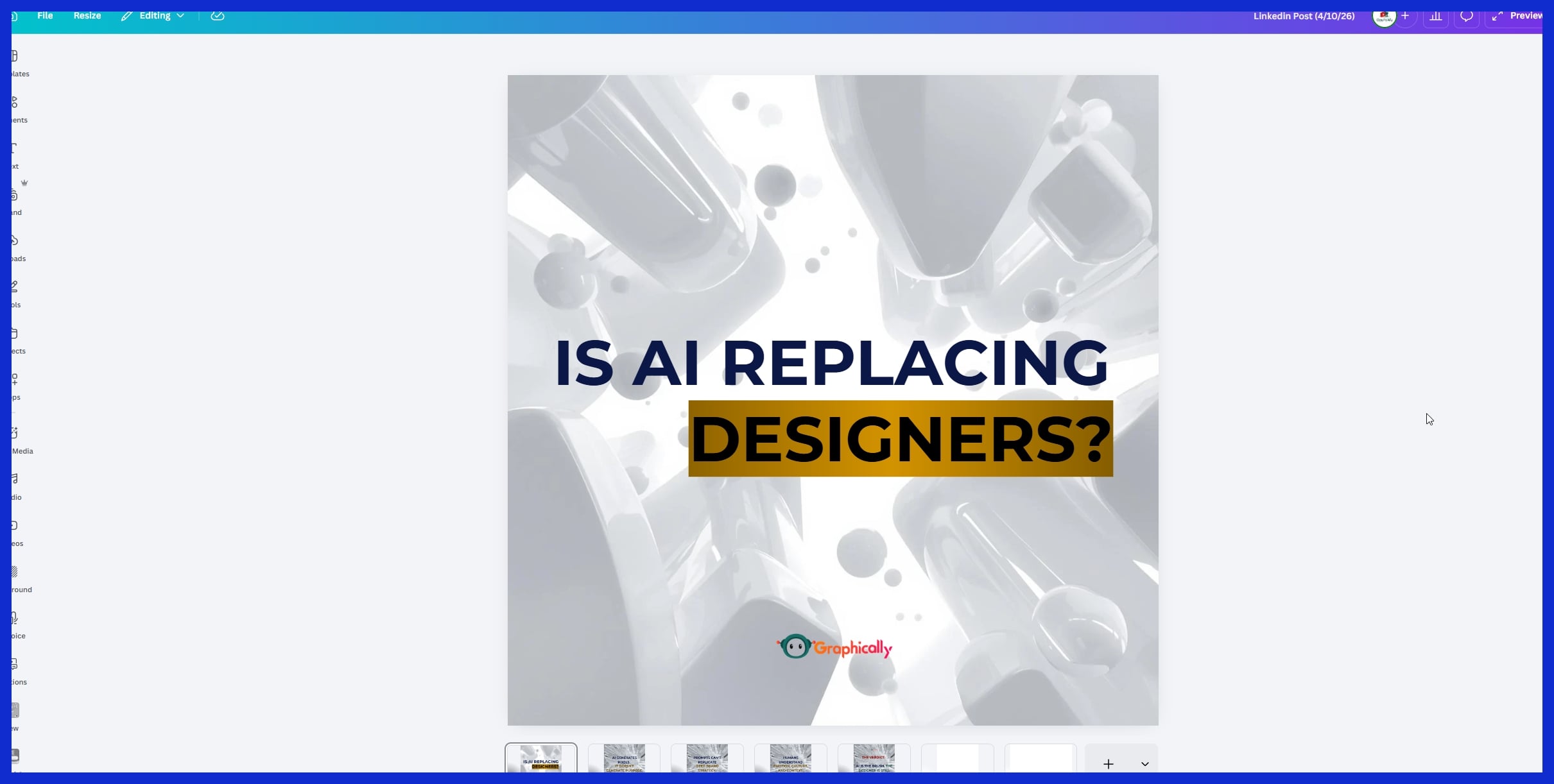
Export features are important. You could need a JPEG for Instagram, a PDF for print, or an SVG for a website.
Top-notch tools give you the option to select the perfect format, making your work shine anywhere. They’ve made it easy to share or send files to clients regardless of platform.
Free vs. Paid Tools
Free Tools Platforms like Inkscape, GIMP, and Canva’s free tier have democratized design. They are perfect for entry-level needs and tight budgets. However, they often come with restrictions: fewer templates, watermarks, minimal customer support, and a lack of advanced features.
Paid Tools Paid software (like Canva Pro or Adobe Creative Cloud) is built for users requiring streamlined workflows and professional effects. Subscriptions provide cloud storage, brand kits, AI tools, and priority support.
If you are a business owner or digital agency needing top-tier results every time, paid tools easily justify their cost. Alternatively, if you want professional results without learning new software at all, a flat-fee design service like Graphically offers a perfect middle ground.
Overcoming Common Challenges
DIY design tools are user-friendly, but you will still hit a few bumps in the road. Here is how to navigate them:
-
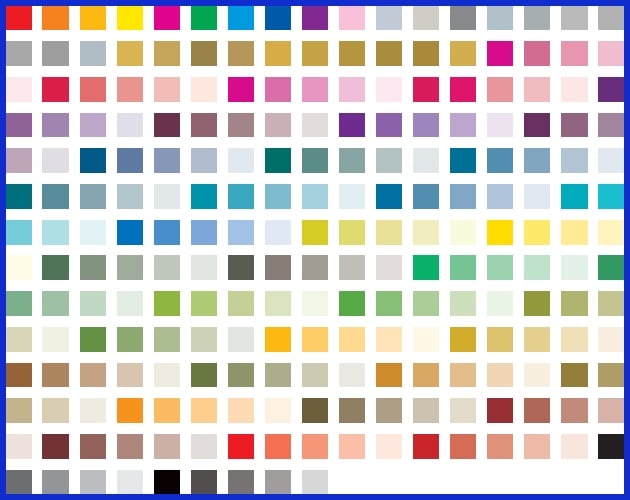
Color Mismatches: Colors look different on screen than they do on paper. Always use mockups and verify your CMYK color palettes before sending anything to a printer to avoid wasting money.
-
The “Template” Look: Relying too heavily on default templates makes your brand look generic. Always blend templates with your own custom modifications, fonts, and brand colors.
-
The Learning Curve: Even drag-and-drop takes practice. Watch online tutorials, join design groups to ask for feedback, and use free stock libraries (like Unsplash) to instantly elevate your visuals.
Beyond The Basics: Leveling Up
Taking your skills to the next level means utilizing smart tech and optimizing your workflow:
-
Integrations: Connect your design platform with tools like Google Drive or Dropbox for easy storage. Integrate with Trello or Asana to monitor project due dates seamlessly.
-
Collaboration: Tools like Figma and Canva allow for real-time editing. You can share drafts, leave specific comments, and brainstorm with your team simultaneously, preventing messy email chains.
-
AI Assistance: Let AI handle the tedious stuff. Smart tools can now remove backgrounds in one click, automatically resize graphics for different social channels, and suggest trending color palettes.
Choosing Your Perfect Tool
Selecting your ideal tool comes down to what you need to create and what you can manage.
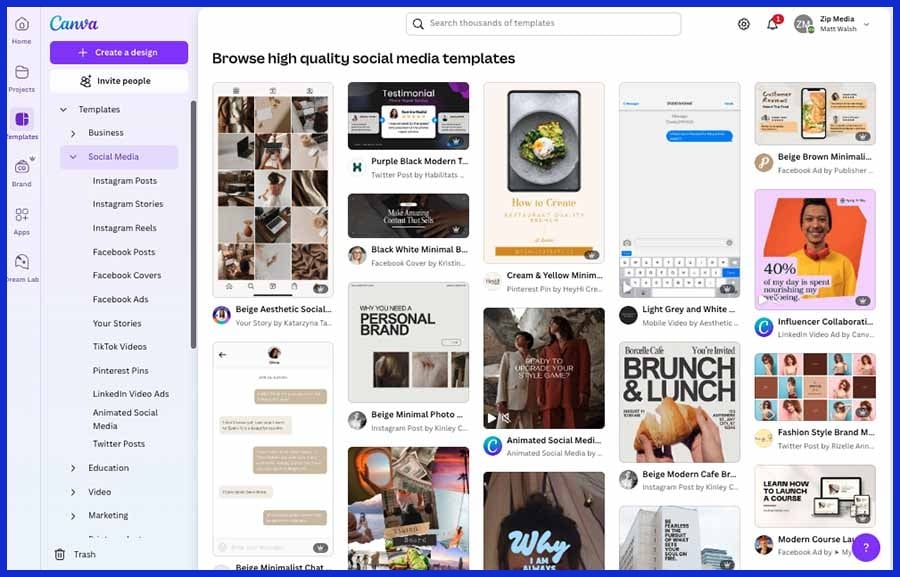
If your daily tasks involve social posts and basic ads, user-friendly tools like Canva or Snappa are perfect. If you are building complex logos or web interfaces, you will want the granular control of Figma or Affinity Designer. Consider your team size as well—if you collaborate often, prioritize tools with real-time sharing features.
Always read user reviews and take advantage of free trials. Test the interface before you spend your cash to ensure it actually improves your workflow.
Conclusion
DIY graphic design tools do heavy lifting for solo founders, small teams, and growing agencies. They provide fast, budget-friendly solutions to create powerful brand materials without requiring a formal design degree. By eliminating the back-and-forth of traditional design edits, these platforms reduce tension and keep your marketing moving at top speed.
Have you experimented with a few tools yet? Once you experience how simple it is to publish a slick, on-brand post, you won’t look back. And remember, for shops trying to scale rapidly or those simply seeking fewer headaches, leaning on a dedicated unlimited design service like Graphically can be the ultimate tool to keep your visual content sharp and professional.
Frequently Asked Questions
What are DIY graphic design tools?
DIY graphic design tools, like Canva and other online design tools, empower users with no formal experience to easily generate stunning designs using templates, drag and drop features, and simple exporting.
Are DIY tools suitable for beginners?
Yes, most DIY tools, like Canva and other online design tools, are aimed at novices. With intuitive design capabilities and quick tutorials, anyone can begin creating stunning designs in no time.
Do I need to pay for quality design features?
Most graphic design software provide free plans with limited functionality. You usually need a paid plan for advanced features like premium templates and powerful design tools.
Can I use DIY design tools for commercial projects?
Most DIY tools, including popular graphic design software, permit commercial use, but verify each tool’s license and terms for your design needs.
What are common challenges with DIY graphic design tools?
Typical pain points with free design tools like Canva include reduced customization, less advanced features, and watermarked downloads on free plans.
How do I choose the right DIY design tool?
Consider your requirements, budget, and design goals while exploring powerful design tools that offer templates, export options, and support tailored to your project needs.
Can DIY tools replace professional designers?
DIY tools are awesome for straightforward projects or small businesses, but for intricate or custom work, leveraging a professional designer or powerful design tools may still be your best choice.