
Table of Contents
Key Takeaways
- There are three different tools within Canva to fix photos: Background Remover, Magic Eraser, and Pixel Eraser. They each have a different function.
- Learning how to remove background on Canva takes less than a minute once you know where to look.
- Background Remover removes all of the background in a single click. This is the quickest way to get product photos and headshots done.
- Magic Eraser erases certain items, individuals, or words from an image and restores what was behind them.
- Pixel Eraser is a manual brush tool that’s free. Utilize it to tidy up minor errors that AI tools might make.
You finally got the shot. Your product is well presented, the light is correct, and you have a great smile.
Then you notice it: a stray coffee cup in the background, a stranger walking through the frame, or a messy desk you forgot to clean up.
You may think it’s best to delete the photo and get it back to zero. Don’t.
Canva has built-in tools that can fix almost any background problem in seconds, no reshoot required. In this guide, you’ll learn how to remove background from Canva with the three tools available for the task, when to use each, and a few examples to demonstrate how they work in practice.
How to Remove Background on Canva: 3 Tools for 3 Different Jobs
There are several meanings to “Remove Background”. Maybe you want the entire background gone. Perhaps you simply wish one object to be removed from the focus of your attention. Maybe you only need to touch up a rough edge.
Canva actually built a separate tool for each of these jobs. They’re part of what Canva calls its Magic Studio, a collection of AI-powered editing tools you’ll find inside the Edit Image panel.
The quick breakdown:
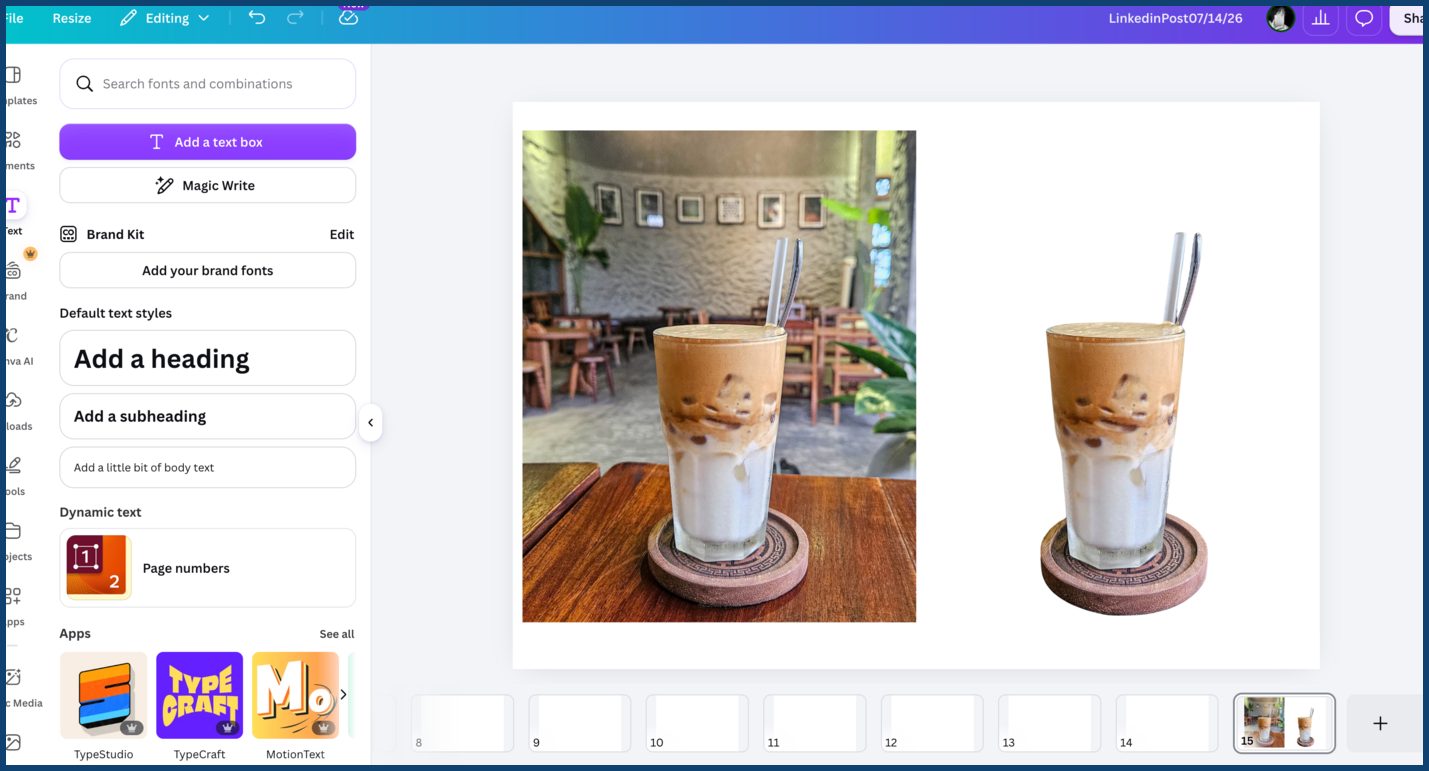
- Background Remover (also labeled BG Remover): Removes the entire background in one click, leaving your subject on a transparent layer. Ideal for product photographs, portraits, and logos.
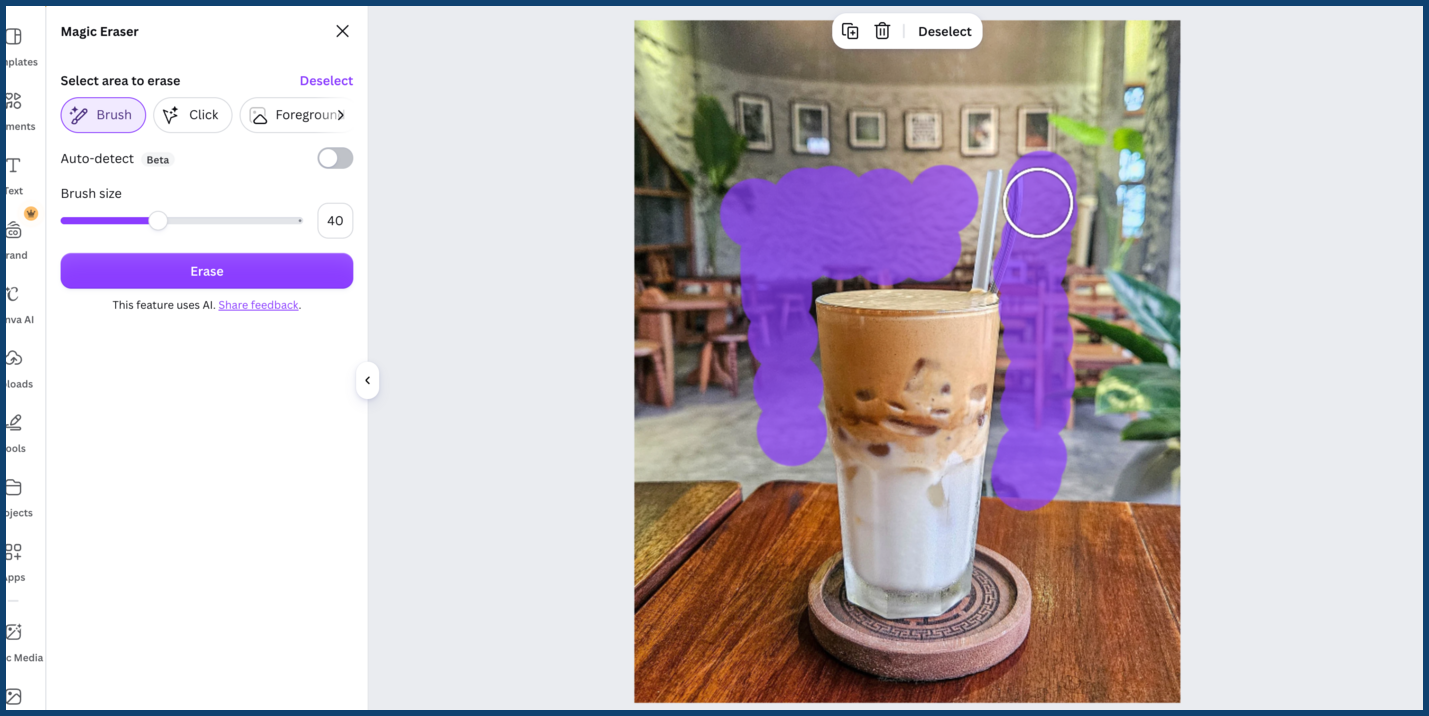
- Magic Eraser: Removes a specific object, person, or block of text from anywhere in the photo. Canva’s AI examines the surrounding pixels and rebuilds the area around it to create a natural-looking removal.
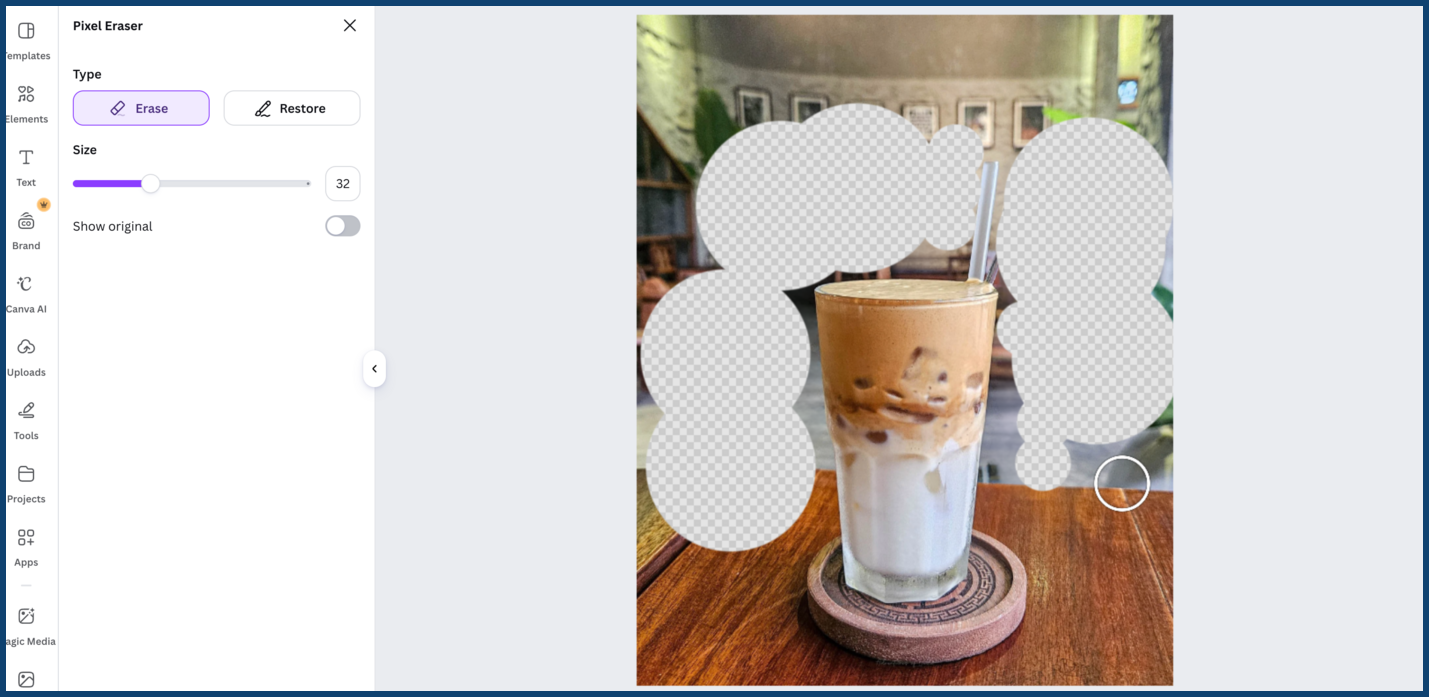
- Pixel Eraser: A manual brush tool with no AI involved. It just eradicates the brush strokes you sweep across. It’s a great choice for fine detail work, particularly in sensitive areas such as hair or fur.
Both Background Remover and Magic Eraser are available in Canva Pro, but you can try them out before committing for free by signing up for a Canva Pro trial. The Pixel Eraser, however, is available for all Canva users, except those who are working with a premium image that needs a subscription to be accessed.
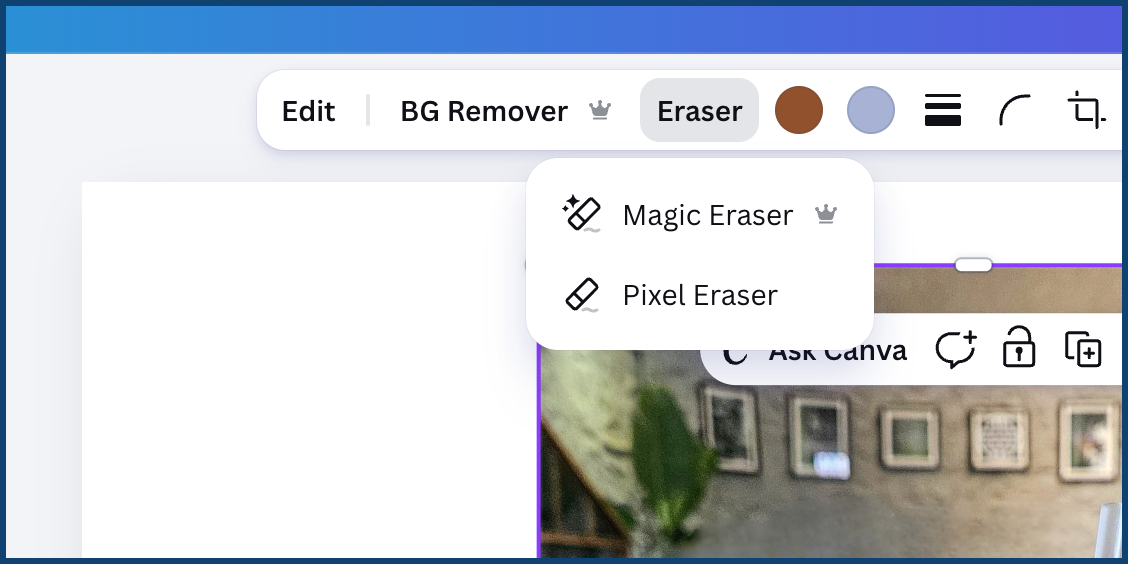
Knowing which tool matches your problem is the real skill here. Use Background Remover for situations where the entire background should be removed. When only one thing is fouling this shot, reach for Magic Eraser. Use Pixel Eraser to make a quick hand touch-up.
Step-by-Step: Removing a Background in Canva (With a Real Example)
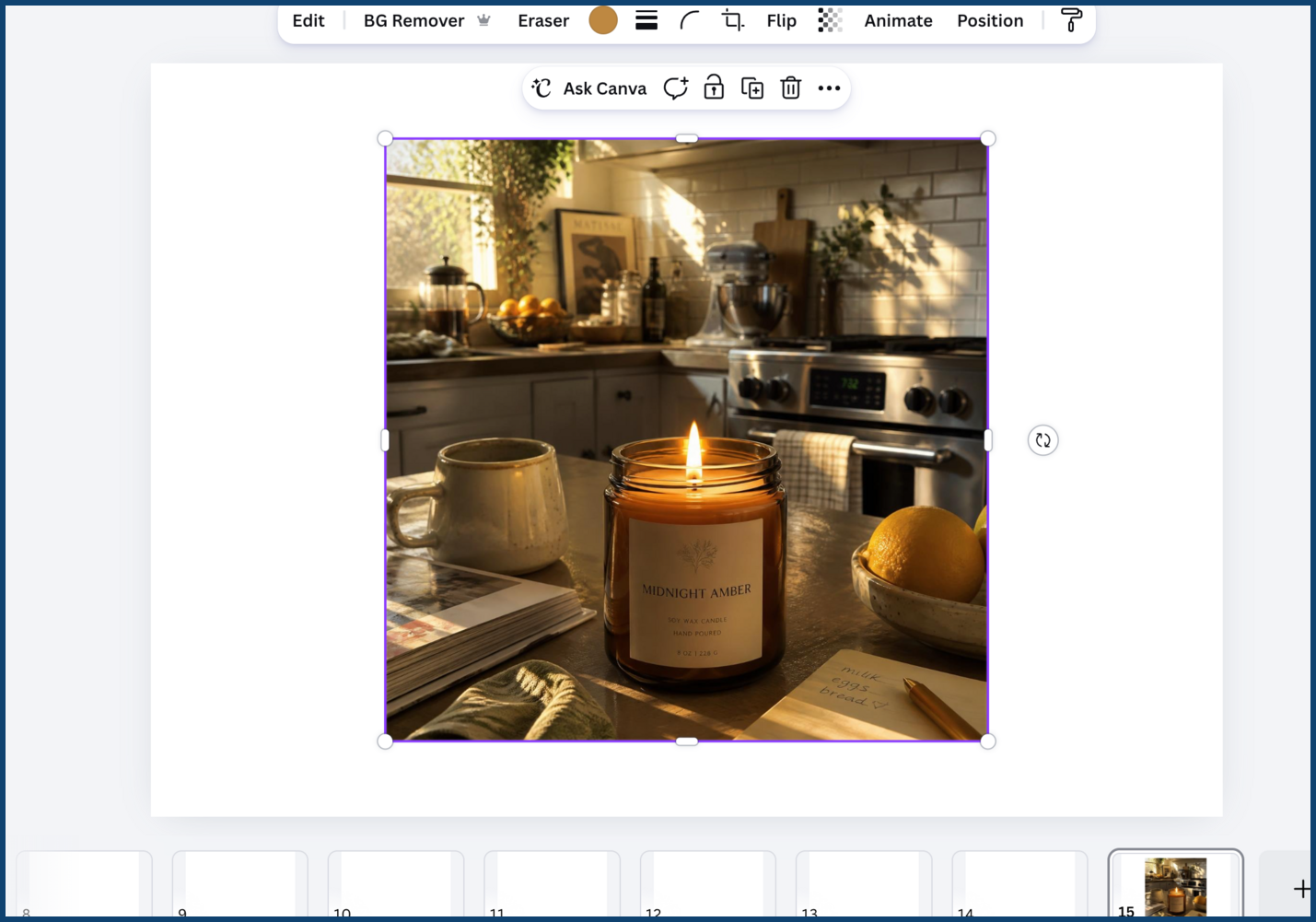
Suppose you own an Etsy business and have a beautiful picture of a candle but it’s lying on a cluttered kitchen counter. Most online marketplaces expect a clean, plain background, so here’s how to fix it:
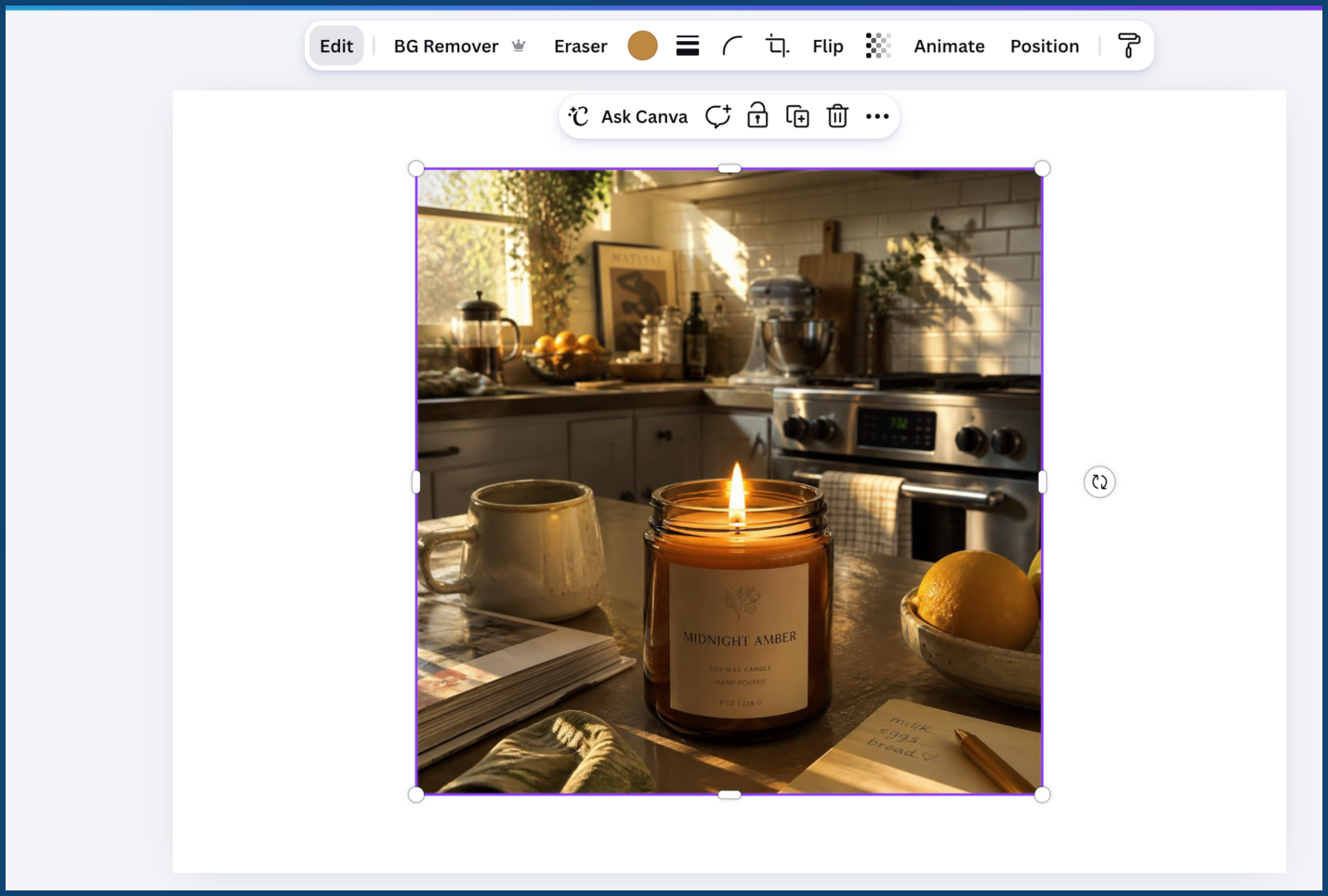
- Upload your photo to Canva and click on it to select it.
- Click Edit Image in the top toolbar.
- Select Background Remover from the tools panel.
- Wait a few seconds while Canva processes the image.
- Use the Erase and Restore brushes to clean up any leftover background or missing pieces.
- Click Apply once you’re happy with the result.
- Download your image as a PNG, and check Transparent background before you export.
That last step trips up more people than you’d expect. Skip it, or export as a JPG instead, and Canva fills the empty space with a solid color rather than keeping it clear.
A few tips for cleaner results: photos with good lighting and a clear color difference between the subject and background give the AI an easier job. Busy backgrounds, shadows, and wispy details like hair or fabric edges are where you’ll most likely need to go back in with the Pixel Eraser for touch-ups.
This same process works for headshots, slide decks, or any product photo. Just double-check size requirements first, since marketplaces often have their own.
Which Tool Should You Use?
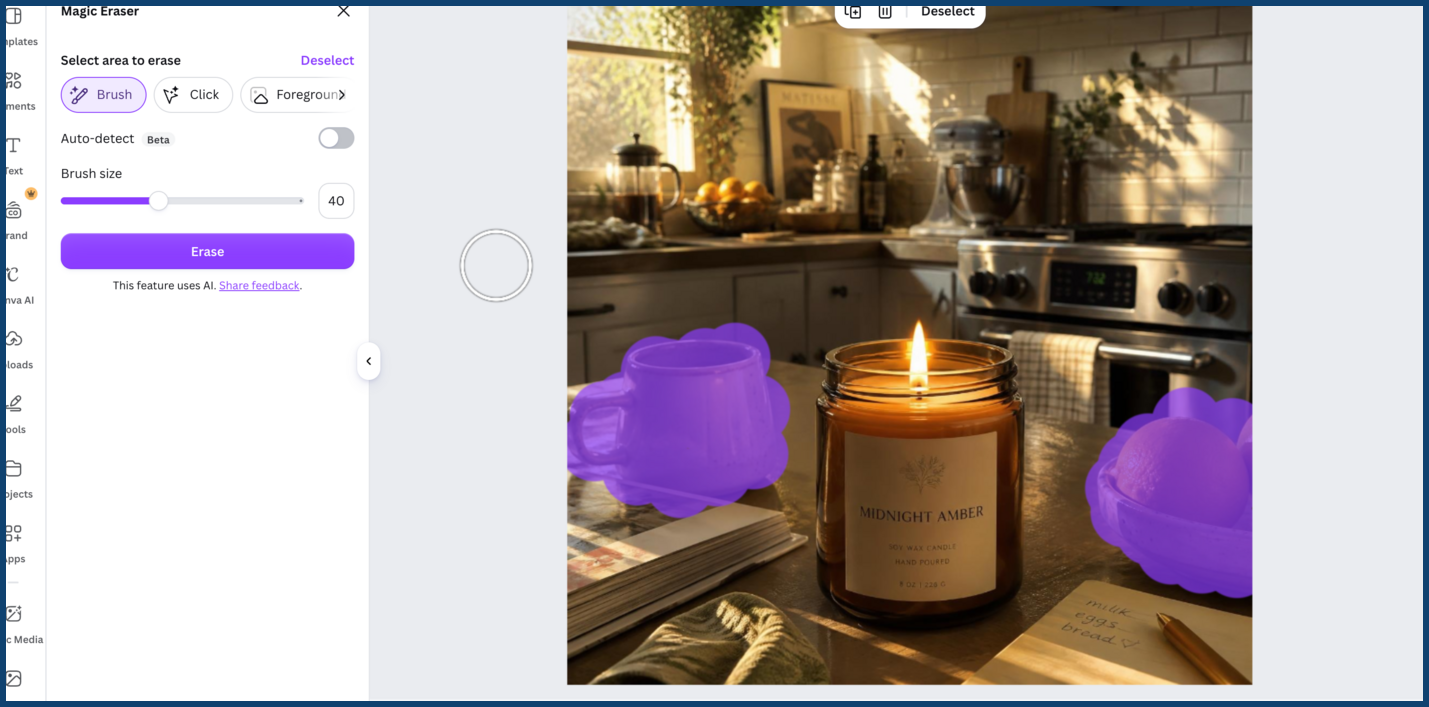
These tools are best understood by observing how people are using them!
A real estate agent showing a home may capture the ideal shot of one of the homes exterior, but see trash cans at the end of the driveway of a neighbor’s property. Reshooting is driving out again to the property. You can use Magic Eraser to do it in seconds—brush away the trash cans without disturbing the rest of the image.
When you are selling something online and you’re listing it on Amazon or Shopify, you’ll need something that has a white background and is transparent. Background Remover does that automatically making a photo look studio grade, taken on a kitchen table.
A social media manager building an Instagram carousel might use Background Remover to lift a product or person off its original background, then drop in a bold brand color instead, so the subject really pops against the feed.
If you’re a small business owner creating a team page or a flyer, you may not even need either of these AI tools. The free Pixel Eraser also can do the job by hand with a head shot that has just a rough edge or a stray watermark in the corner.
Conclusion
If you have a messy background, a photo-bomber or a rough edge, your picture isn’t ruined. Canva offers the ability to correct nearly any photo-related issue with their Background Remover, Magic Eraser, or Pixel Eraser.
Use the tool that will achieve the desired effect first and add a second tool for an added polish if necessary. The rest will fall into place together at this point and then that’s “almost good enough” to “ready to publish.
If you’d rather hand this off entirely, that’s exactly what Graphically is for. Their design team handles photo editing, touch-ups, and everyday graphic design work, delivering files ready to use in Canva, usually within 24 hours.
FAQs
Is Canva’s Background Remover free?
No. Canva Pro is a feature of Canva that isn’t available in the free version, though there is a free trial. The price of Pixel Eraser is free for everybody, except for premium stock images.
Why does my background turn white when I download my image?
You may have downloaded this as a JPG, or you may not have checked the “Transparent background” box when you exported this PNG. Both will fill in the space instead of keeping it clear.
What’s the actual difference between Magic Eraser and Background Remover?
Background Remover clears the entire background at once. Magic Eraser targets specific objects or areas you brush over, then rebuilds what’s behind them using AI.
Can I remove a background using the Canva mobile app?
Yes. All three tools work on the iOS and Android apps. The process is the same as desktop, though a smaller screen means you’ll want extra patience when refining edges.
Why didn’t Background Remover work well on my photo?
The tool depends an obvious distinction between the subject and the background. The AI might misinterpret low contrast image, crowded scenes or details such as hair and fur. That’s typically when you should introduce Magic Eraser or Pixel Eraser to take care of that mess.